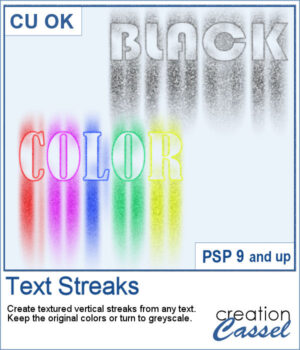
Add a unique touch to your text with the Text Streaks script for PaintShop Pro! Create textured vertical streaks that extend above and below your letters, gradually fading away. Use solid colors, gradients, individual letter colors, or even patterns. You can also choose greyscale for a more distressed look. Perfect for creating eye-catching scrapbook titles and word art!
Get this script: Text Streaks
Want a chance to get these beads for free? Head over to this Facebook post and tell us what word you would likely use with this effect. (likes and shares are appreciated, but won’t count as entries.) A winner will be announced in next week’s newsletter. If you’re not on the list yet, you can join right here. It’s free, and we only email once a week!
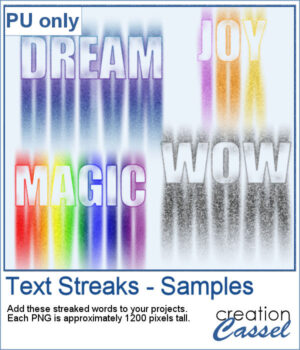
For some samples, I generated some streaked text with four words that you could use in any of your project, whether it is a scrapbook page, a greeting card, or others. Each element is about 1200 pixels high so you can size them down as needed. Of course, you can also change the colors if you need something different!
You need to be logged in to download this sample. Please log in or register using the links at the top of this page.
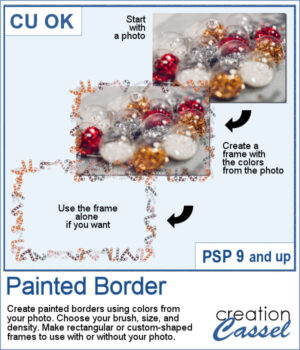
Create a unique painted border that coordinates perfectly with your photo! The Painted Border script for PaintShop Pro uses colors extracted directly from your image and the brush of your choice to create rectangular or custom-shaped frames. Adjust the brush size and density, and use the finished border with your photo or separately in another project.
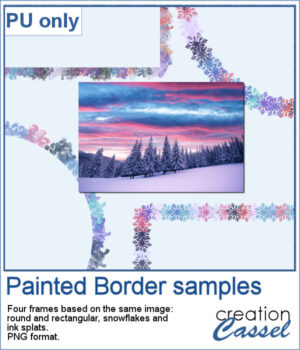
For a sample, I ran this script four times, on the same image, using different shapes and different brush tips. This generated four separate painted borders using the same colors so you will have some coordinated frames.
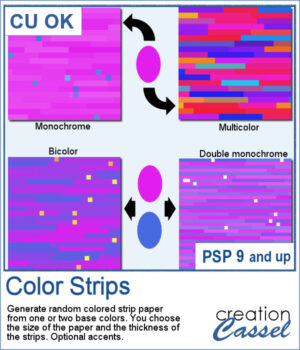
Create colorful striped papers with the Color Strips script for PaintShop Pro! Choose from four color combinations, adjust the strip thickness, and add optional accent squares for extra detail.
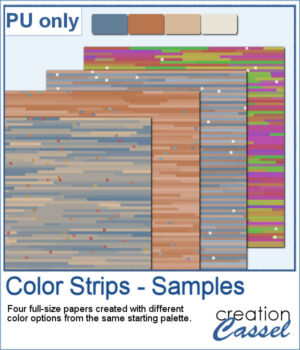
For some samplers, I generated four full-size papers using a common earthy color palette of dusty blue and copper. Using that color palette, I showcase the four available options in that script.
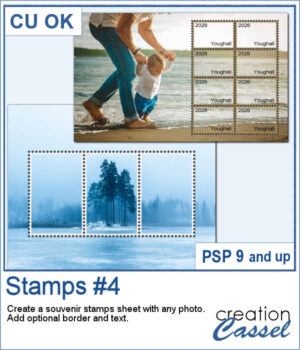
Have you ever seen souvenir stamp sheets where several stamps come together to form one larger picture? You can do that using any photograph!
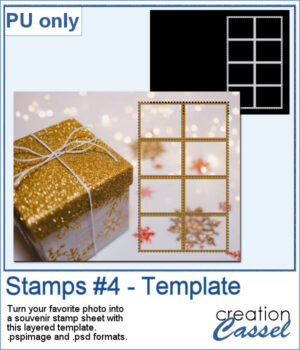
For a sample, I created a layered template where you can replace the background by any photo of yours, and adjust the color of the border (if you want) and have your own souvenir sheet. If needed, you can also change the orientation of the template. Then, add the text you want on each stamp.
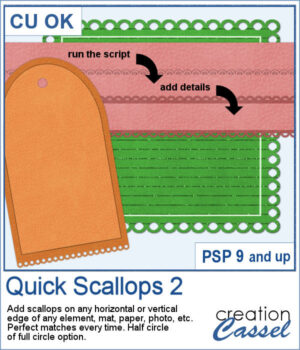
This script lets you add decorative scalloped edges to photos, papers, mats, and other scrapbook elements. Choose between open scallops with half-circle cutouts or eyelet scallops with complete circular holes for a punched-paper effect.
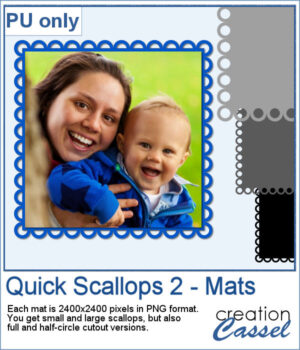
For a sample, I created 4 mats that you can colorize or clip papers to. Each mat is 2400x2400 pixels so you can easily resize them as needed.
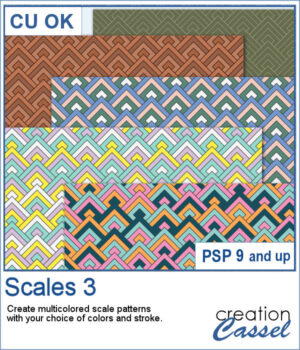
The Scales 3 script creates a geometric scale pattern made from nested diamond shapes. Choose a single color for a solid or monochrome design, or select four colors and experiment with different arrangements, including random variations by row or by scale.
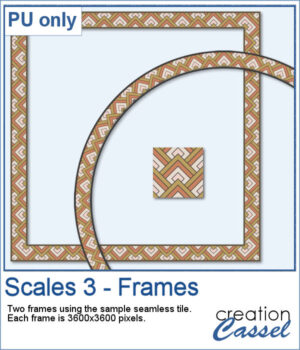
For a free sample, I used the color palette from the Digital Scrapbook October blog train, and created one multicolored seamless pattern. From there, I filled long ribbons with that tile. Finally, I used the Mitered Corner frame script to make a square frame, and the Circular Element script to make a round frame, using that same seamless pattern.
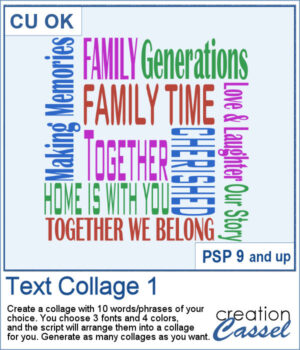
Create your own word art with the Text Collage 1 script for PaintShop Pro. Enter 10 words or short phrases, choose three fonts and four colors, and let the script arrange them into a square collage.
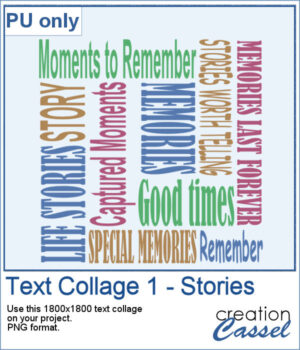
For a sampler, I created a collage with words and phrases related to memories and stories. Although I used some muted colors, you can always changed them by locking the transparency and painting some words. The collage is in PNG format so you can use whatever background color or patterns behind it.
You can now add some autumn-related details for your projects whether on corners, on edges, or randomly placed all around. This set includes 10 different corners, with 12 different edges, and 13 individual shapes.
For a sampler, I created some bookmarks that you can print or use on various projects. You can attach a string to them, write names or quotes or other messages on them. They are in png format so you can use them in a variety of programs.
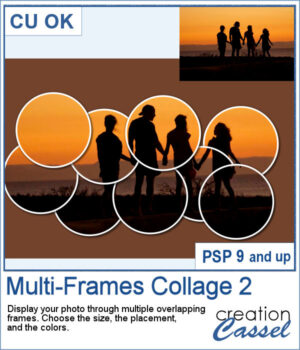
Turn a single photo into a fun collage with the Multi-Frames Collage 2 script. Your image will appear through a series of overlapping circular frames that you can position to highlight the important parts of your photo. Choose the size of the circles, customize the frame and background colors, keep or modify the original background, or remove it completely. Experiment with different arrangements to create a unique result every time.
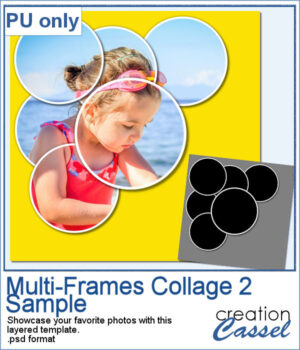
For a sample, I created a layered template that you can use to showcase your favorite photo. It is in .psd format so you can use it in PaintShop Pro, Affinity, or various other programs.
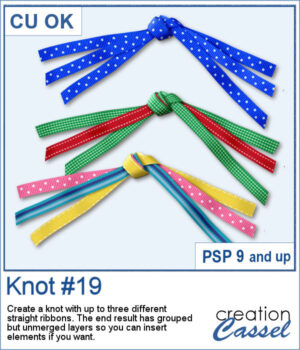
Create your own ribbon knot embellishments using the ribbons already in your stash! The Knot #19 script lets you combine one, two, or three straight ribbons into a dimensional knot with flowing ends on both sides.
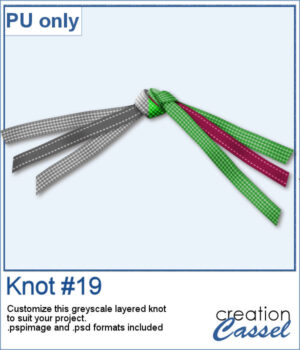
For a sampler, I created a knot using two different ribbons in greyscale. The end result is left on unmerged layers so you can colorize them to your liking and even insert elements, or other ribbons in the knot. The file is available in .pspimage format and .psd format so you can use it in more programs.