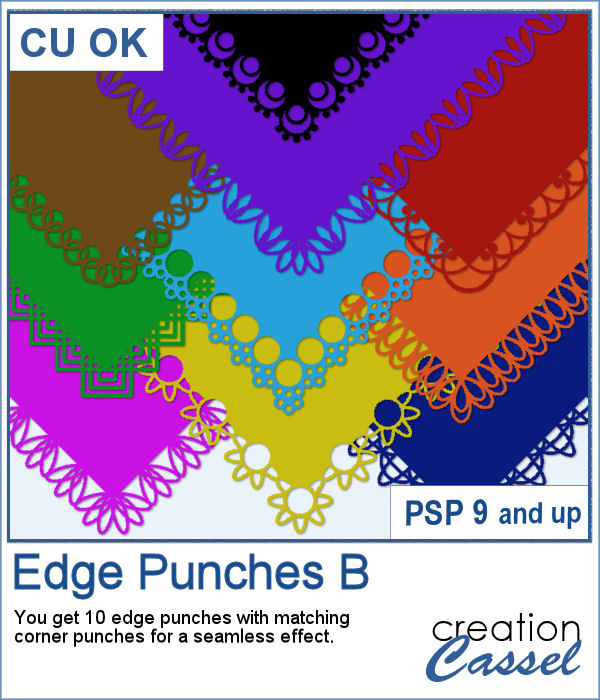
In paper crafting, punches are popular to create a decorative edge on papers, frames, photos, etc. With PaintShop Pro, you can create a similar effect by using the Eraser tool with special brush tips.
This is a set of 10 different brush tips to cut out the edges of a paper, but you also get matching corner brushes so you can create a continuous cutout.
Get these punches in the store: Edge Punches B
In order to win this script, add a comment on this Facebook post telling us if you have any of the other punches from the store (remember, add a comment, not just a Like!) The winner will be announced in the newsletter, next week. Not a subscriber yet? Not a problem. You can register here and it is free (and you only get one email per week).
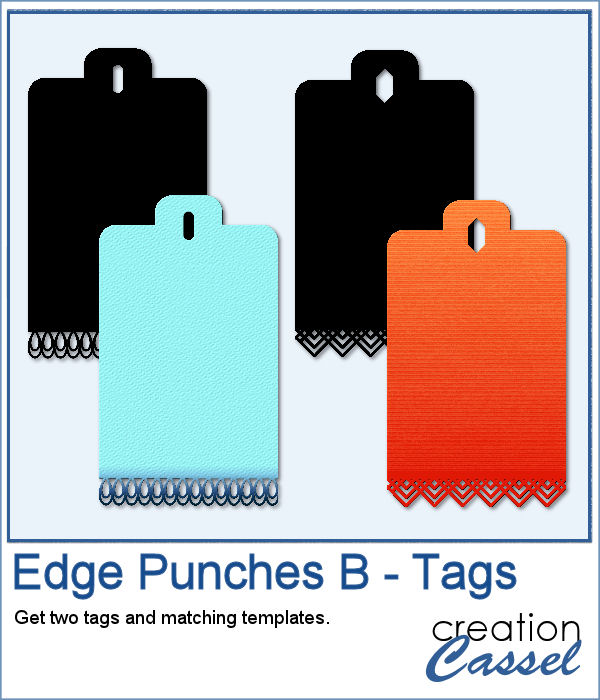
As a sampler, I created two tags with different colors but I also include the template for each of them so you can create your own in the color that will suit your project. Then, simply add texture, bevel or decorations to them.
You need to be logged in to download this sample. You can either login, or register on the top of this page.
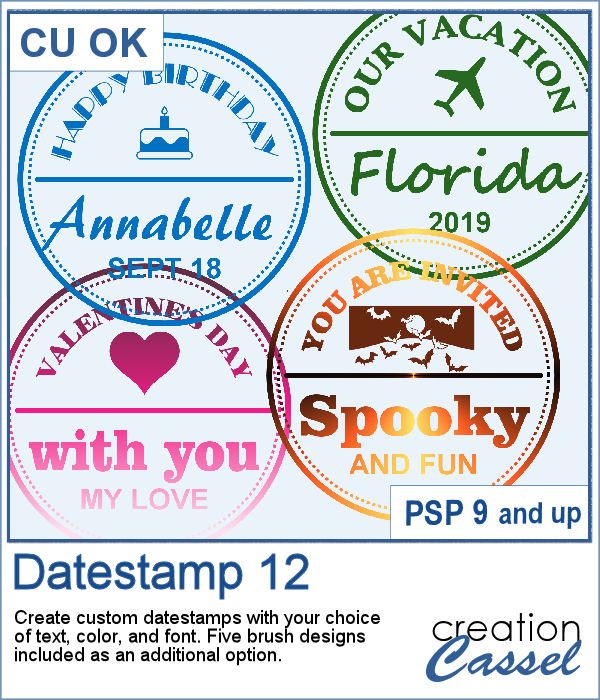
Datestamps can be used for much more than just dates. It is a way to add a name, a location, an event, or even a common phrase that can be associated with a photo or a story.
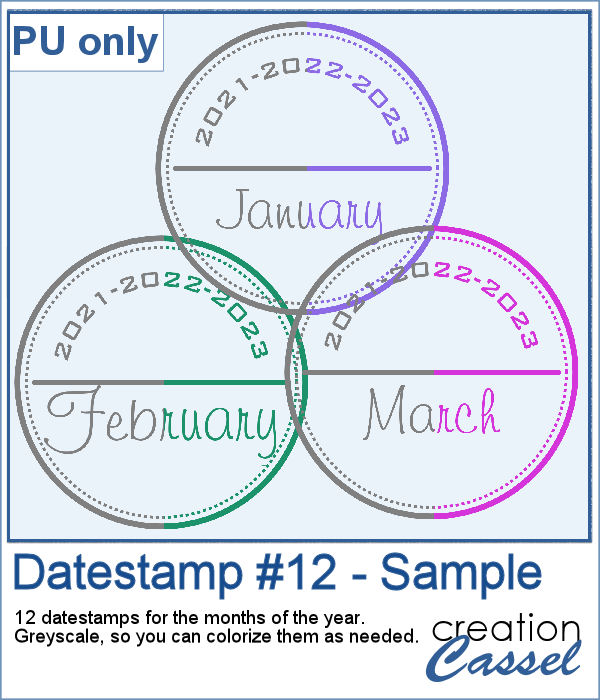
For a sample, I created a set of 12 datestamps with the months of the year. I have three years listed on top so you can always circle the one that matches your project. I purposefully left the space empty at the very bottom so you can add a date if you want. Everything is in greyscale so you can colorize it, and it is in png format.
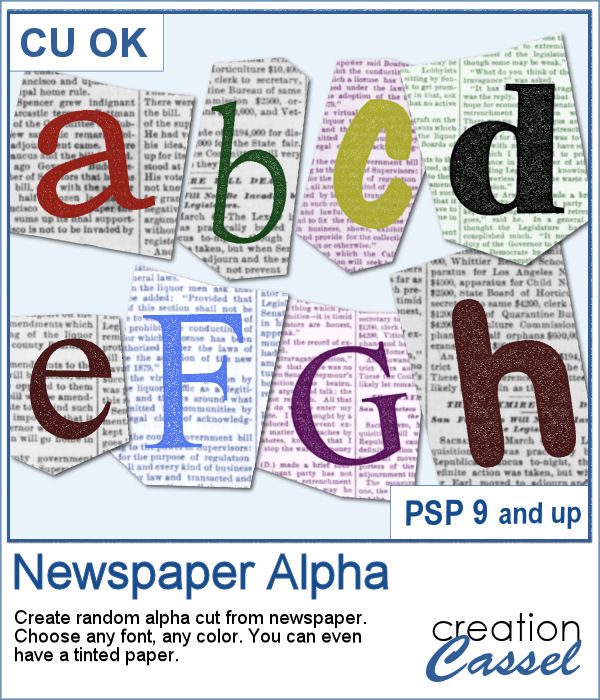
Newspapers can be a fun medium to print letters on, and create a random effect. This might be easy but it is quite tedious to have something very irregular. That is why this script will be a time-saver.
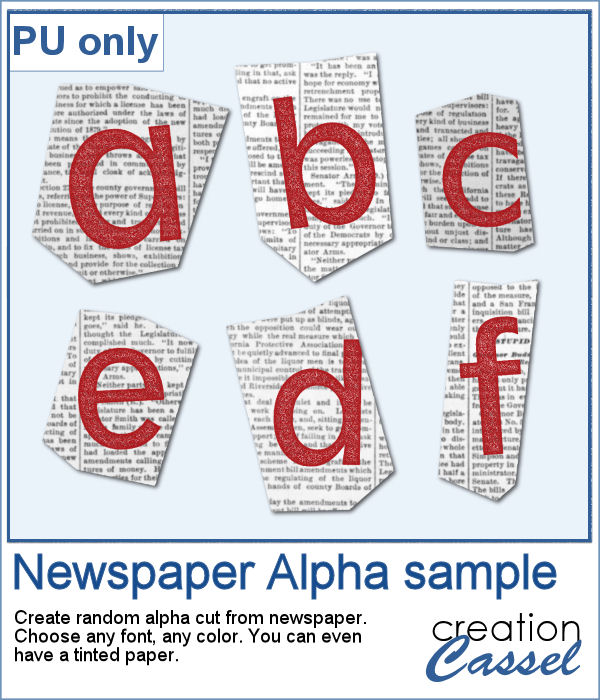
As a sample, I created a basic red alphabet (in lowercase) on black and white newspapers.
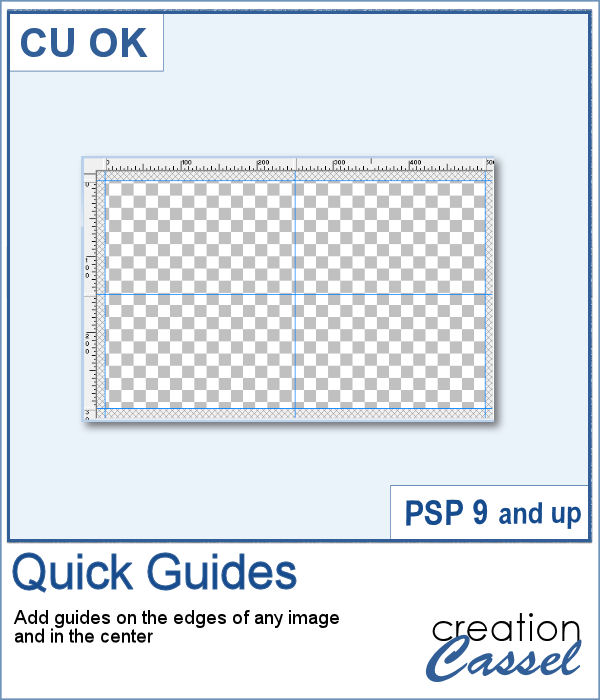
When working with PaintShop Pro to create frames or other effects, it is convenient to use guides so we can snap to them and keep our elements, our lines, or brush strokes aligned. Although adding guides along the edges of any image is not really difficult, it is a little tedious to place them exactly on the edges, especially for all four sides. Furthermore, if you want to place guides in the very center, you have to do some calculations too.
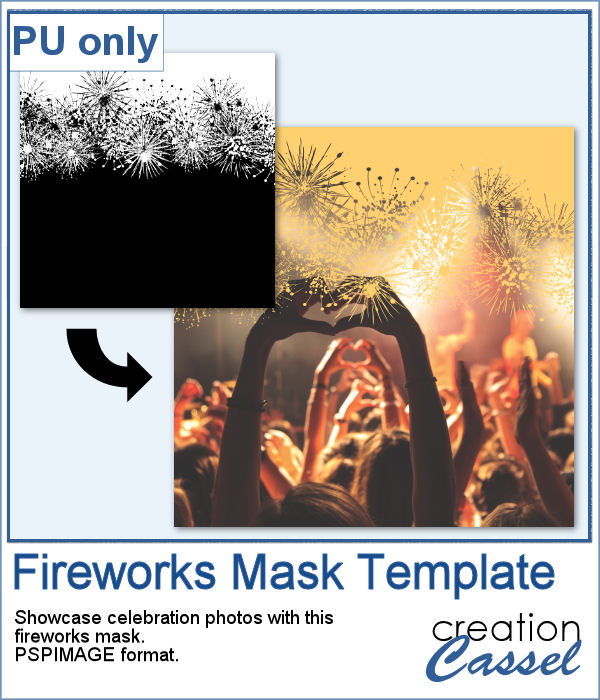
As a utility script, I can hardly create a sample from using it, right? So, as a freebie, I decided to create a mask template for you using the Fireworks picture tubes available in the Campus for the January theme blog post (you can get those tubes
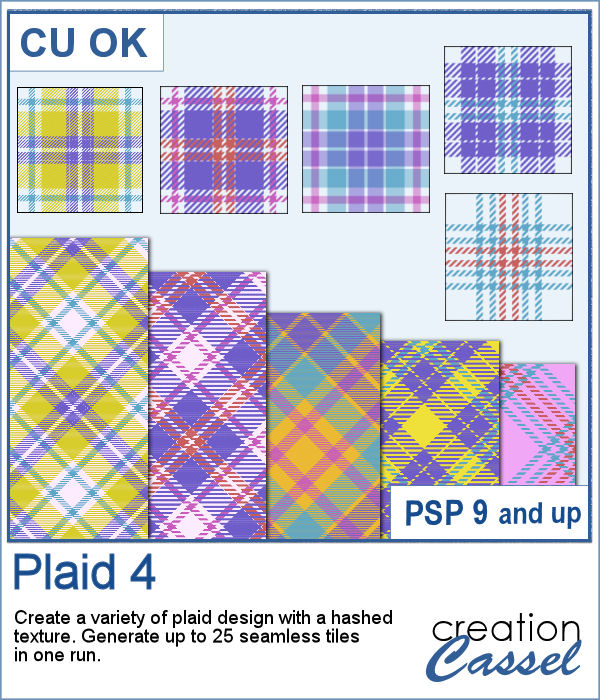
Plaids are versatile and since you can use a wide variety of colors, the possibilities are endless. Some plaids are simple, some are intricate. This particular design includes a hashed texture that will let you show any background color through.
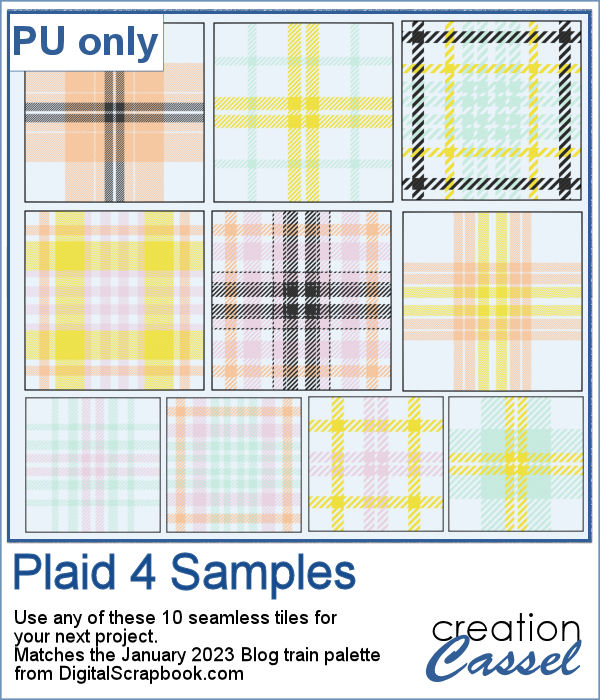
For a sample, I used the color palette from the January 2023 blog train at DigitalScrapbook.com and created 10 tiles for you. They are in png format so you can add any color background behind them. And if you want to download various matching kits and elements, check out their blog train thread
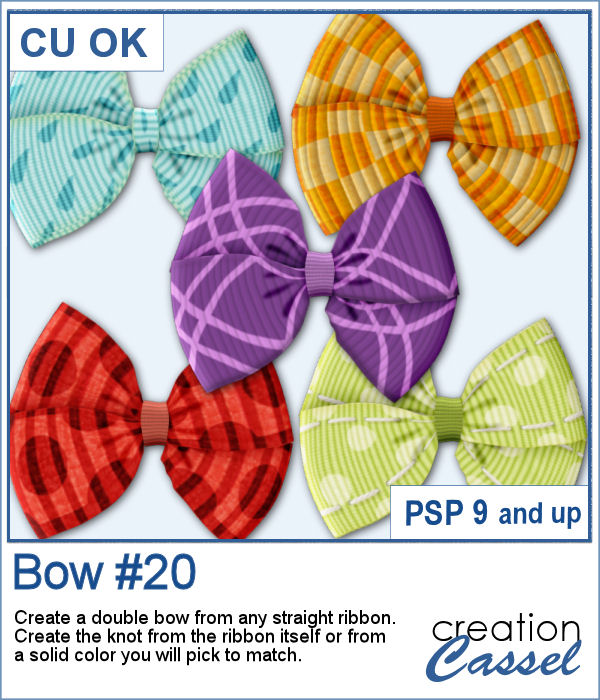
A simple bow might be all you need for your project, but how do you find the correct one? Using a ready-made bow and colorizing it might work but might also be a lot of work.
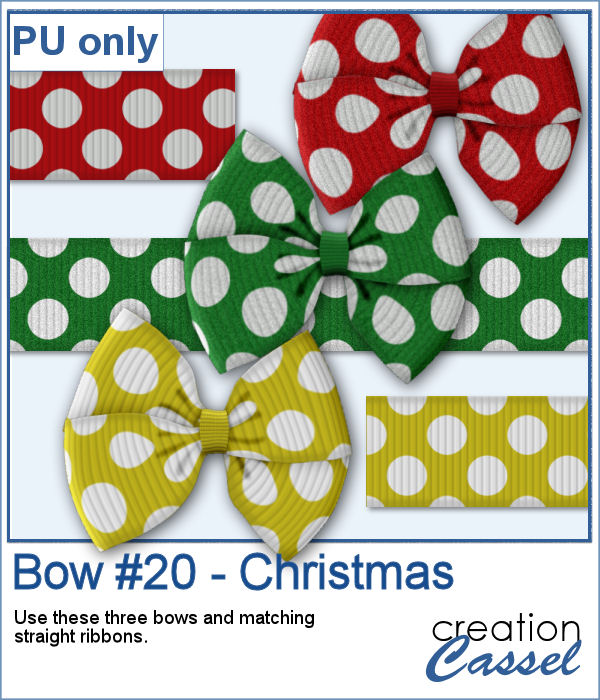
For a sample, I created three straight polkadot ribbons with holiday colors and ran the script to generate three matching bows. The straight ribbons are also included in the zip file so you can use them separately.
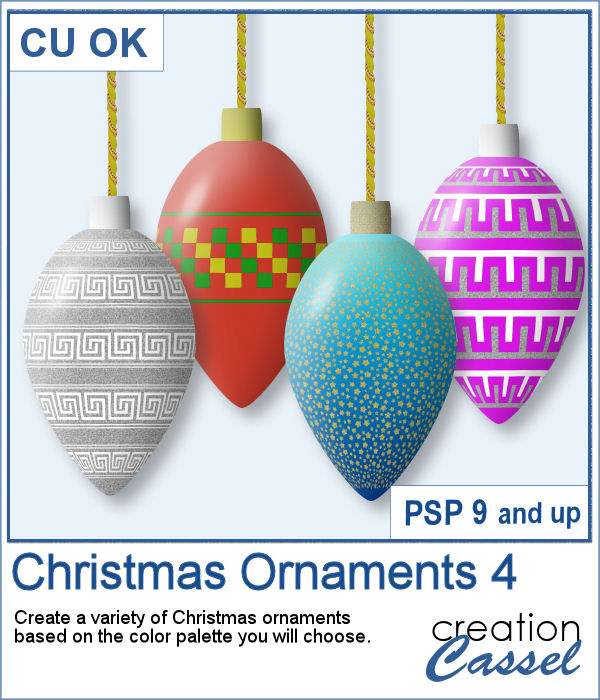
If you are doing some holiday projects, whether they are greeting cards or scrapbook pages, you might want to add some Christmas ornaments in specific colors of your choice. This script will randomly draw oblong ornaments with your color palette and 15 different designs.
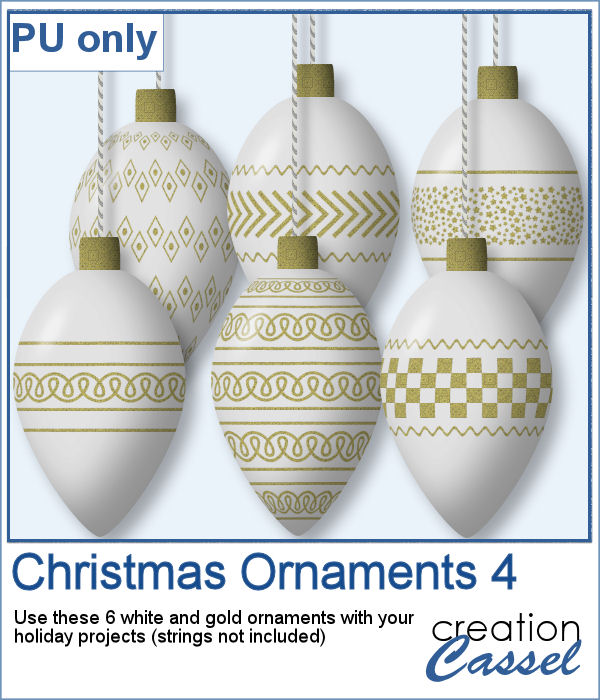
For this week, I created 6 white ornaments decorated with gold designs.
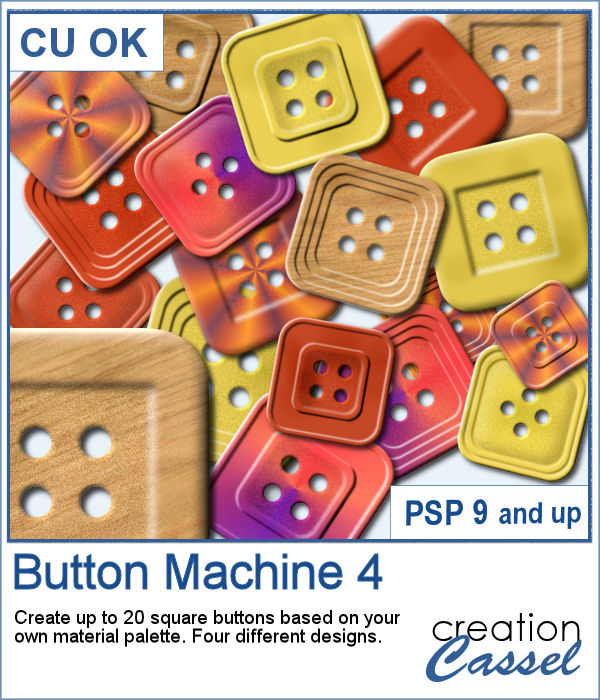
Buttons can come in many shapes and colors. And they can be so versatile when used in various projects, whether you want to pretend you are fastening photos, or you want to create a decorative element by combining several together.
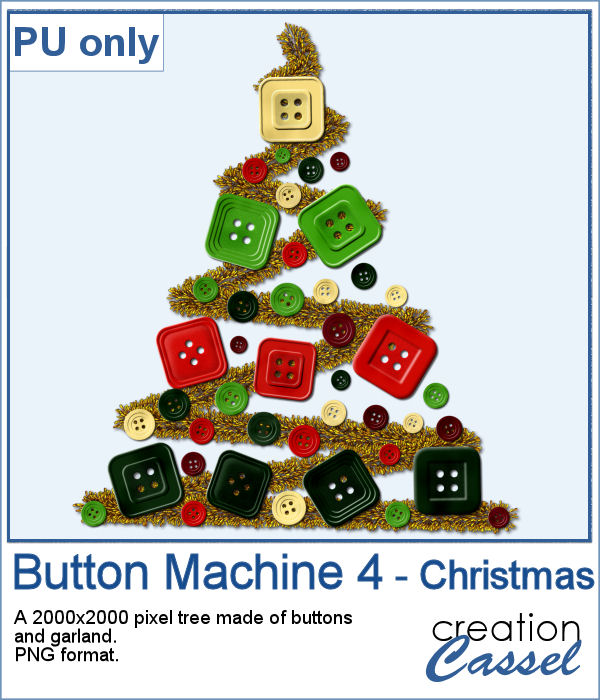
As a sampler, I created a fun Christmas tree out of buttons from this script and the original Button Machine script for the round buttons.
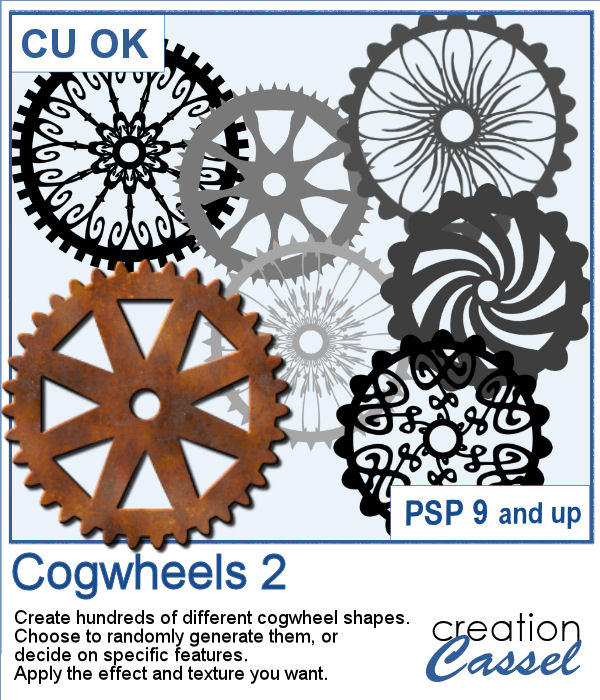
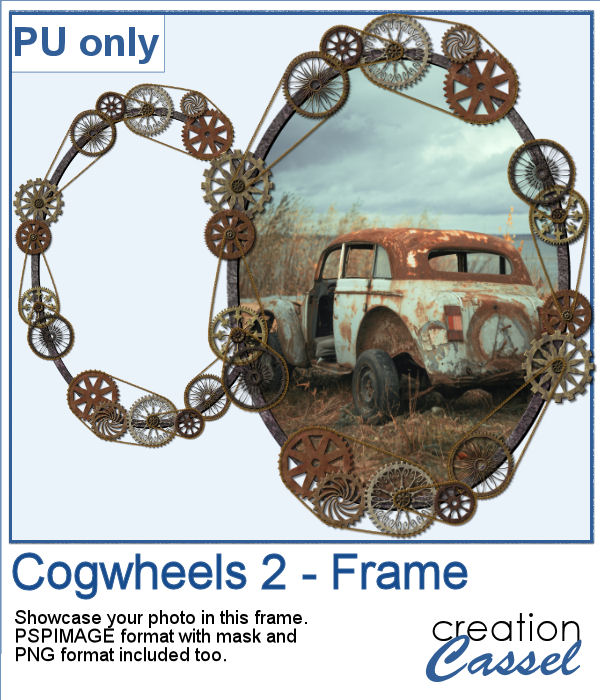
For a sample, I created a frame using various cogwheels generated by the script. I resized them, added a texture using Filter Forge, added a bevel, and shadows. I also had fun adding chains to connect those wheels.
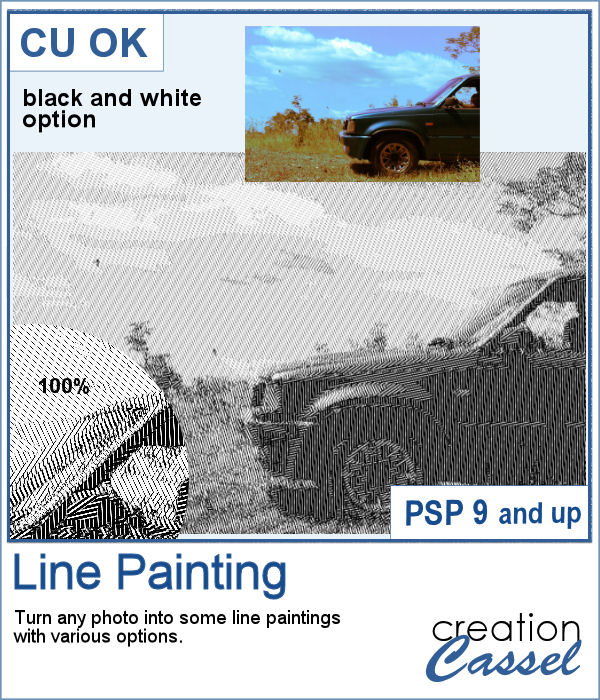
When I was in school, I remember one art class where we had to use straight lines of different thicknesses to replicate a simple image. I was not very good at that, but I would have loved to have this script, which does it in just a few seconds.
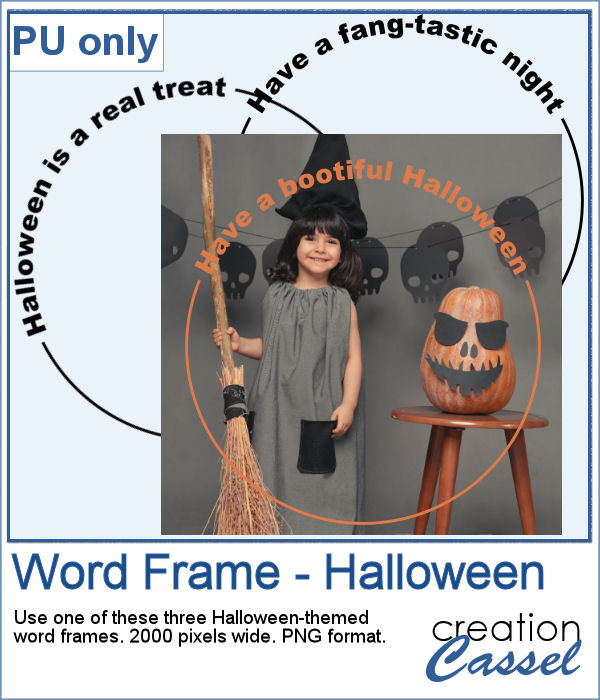
As a sampler, this week, I created some simple word frames for Halloween. You can colorize those frames to suit your project or your photo.