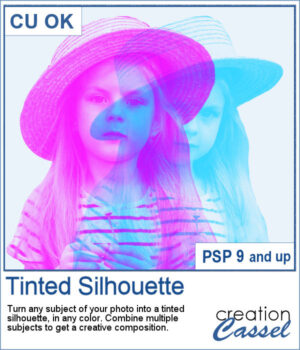
This tinted silhouette effect is perfect to create striking accents from any photo, whether you want to highlight a single subject or layer several for a more dynamic composition. You can apply a solid tint, use gradients for colorful variations, or repeat the script with multiple colors to build creative overlays.
Choose a version optimized for light or dark backgrounds, or generate both and pick the one that fits your project best. Combine different silhouettes, adjust blend modes, and experiment with endless effects.
Get this script: Tinted Silhouette
Want a chance to win this script? Add a comment on this Facebook post telling us what subject you would consider using to create such effect (Remember, comments count — not Likes!). A winner will be announced in next week’s newsletter. Not subscribed yet? Sign up here — it’s free, and we only send one email per week.
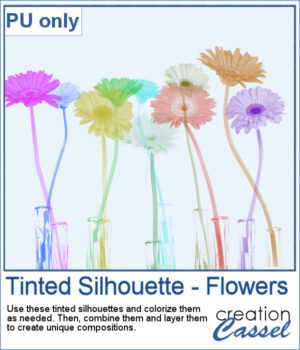
This week, as a sampler, I'm offering you these flower silhouettes in PNG format. They come in pink but you can easily recolor them as needed for your project.
Try layering them together, adjusting blend modes, or filling them with gradients to create unique bouquets or borders on your scrapbook pages.
You need to be logged in to download this sample. Please log in or register using the links at the top of this page.
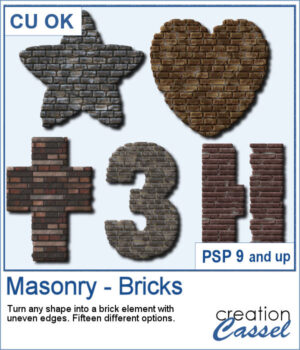
Looking for a unique way to turn your titles or elements into something bold and textured? The Masonry – Bricks script lets you convert any shape—raster or vector—into a brick-style element with realistic texture and uneven edges.
To give you a sample of what this script can create, here’s a set of digits from 0 to 9, turned into masonry elements using one of the built-in styles. These are perfect for adding dates, ages, or other numbers to your layouts. Each one is 500 pixels high and saved in PNG format, so they’re easy to add and recolor.
Looking for a bold and stylish way to frame your words or photos? The Datestamp #14 script gives you a fun design that’s perfect for highlighting a name, a message, or even a full photo!
To give you a sample of what this script can create, here’s a set of 8 datestamps — one for each shape available in the script. The banners are left blank so you can add your own text, and the corner icons range from birthdays and love to travel and graduation. Each one is in black so you can easily colorize them to match your project.
Have you collected great brushes over the years, only to find they’re just too small for today’s high-resolution projects? Back in the PSP9 era and earlier, brushes were limited to 500 pixels — and some were even under 100. That might have worked fine back then, but now a 100-pixel brush looks tiny on a 3600-pixel layout!
Since I cannot make a sampler from this script, I created a whole alphabet made of stone. It will be perfect to add to your adventure-related projects or to place them in the sand, on the beach.
Looking for a creative way to give your elements a warm, handmade feel? The Crochet Texture 1 script lets you turn any vector shape into a realistic crochet piece! With detailed textures and edging, your shapes will look like they've been stitched with yarn — perfect for cozy, crafty projects.
To give you a little sample of what this script can do, here's a freebie made with the Crochet Texture 1 script: a simple crocheted flower in sunny yellow, using a ribbed fill and a matching edge. It’s perfect to tuck into a kids’ layout, a cozy winter scene, or even a handmade card project.
Create Titles That Fit Together Like a Puzzle
To give you a little taste of what this script can create, here's a free title made using the Alpha Blocks 1 script. It says SUMMER DAYS, in cheerful brown and turquoise tones, with alternating block shapes. This is a Personal Use freebie — perfect to drop into a sunny layout!
Want to give your photos a colored pencil sketch effect? This new script for PaintShop Pro lets you do just that—with adjustable layers and now a new option to apply the effect to the entire image or just a selected area.
For a sampler, I used a floral wreath design and ran the script on the whole picture. I manually removed all the white background so you can use that wreath on any paper of yours.
If you were to create your own flower, out of papers from a kit, how would you do it? You might choose to cut out one petal and simply duplicate it multiple times and rotate them around the center. But you know what? This looks "amateurish" because a real flower made of paper would NOT have 100% identical petals, would it? You would see some variations in the texture, the shading or the pattern.
As a sample, i created a fun pink flower for you.