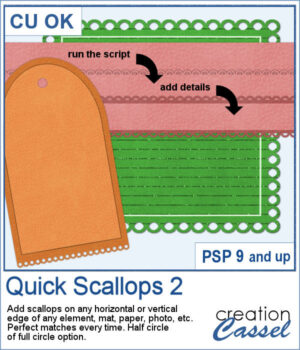
This script lets you add decorative scalloped edges to photos, papers, mats, and other scrapbook elements. Choose between open scallops with half-circle cutouts or eyelet scallops with complete circular holes for a punched-paper effect.
Apply the scallops to a single edge, two opposing edges, or all four sides. The script automatically adjusts the spacing so the scallops fit perfectly, without any awkward partial shapes. It's an easy way to create decorative borders, photo mats, paper strips, and tags with a realistic paper-punched look.
Get this script: Quick Scallops 2
Want a chance to get these beads for free? Head over to this Facebook post and tell us what you typically do with bead tubes. (likes and shares are appreciated, but won’t count as entries.) A winner will be announced in next week’s newsletter. If you’re not on the list yet, you can join right here. It’s free, and we only email once a week!
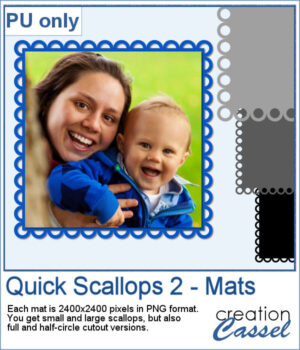
For a sample, I created 4 mats that you can colorize or clip papers to. Each mat is 2400x2400 pixels so you can easily resize them as needed.
You need to be logged in to download this sample. Please log in or register using the links at the top of this page.
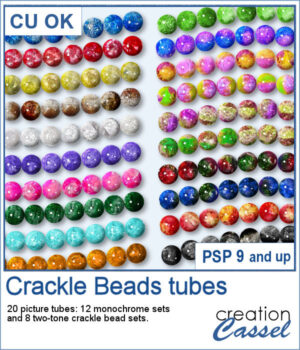
Add some sparkle to your projects with these colorful Crackle Beads Picture Tubes. This collection includes 20 different tubes, with 12 monochrome sets and 8 two-tone combinations. Each tube contains a variety of beads that are randomly selected as you draw, giving your strings a natural and varied appearance.
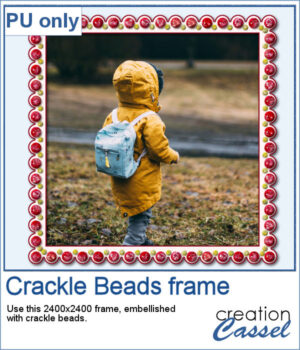
For a sample, I created a paper frame and added beads manually to it. You can see the red beads and smaller yellow beads.
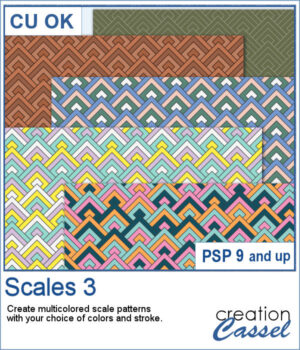
The Scales 3 script creates a geometric scale pattern made from nested diamond shapes. Choose a single color for a solid or monochrome design, or select four colors and experiment with different arrangements, including random variations by row or by scale.
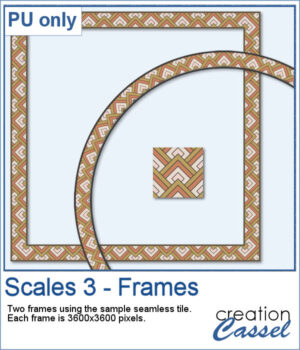
For a free sample, I used the color palette from the Digital Scrapbook October blog train, and created one multicolored seamless pattern. From there, I filled long ribbons with that tile. Finally, I used the Mitered Corner frame script to make a square frame, and the Circular Element script to make a round frame, using that same seamless pattern.
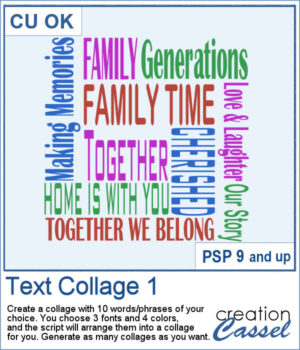
Create your own word art with the Text Collage 1 script for PaintShop Pro. Enter 10 words or short phrases, choose three fonts and four colors, and let the script arrange them into a square collage.
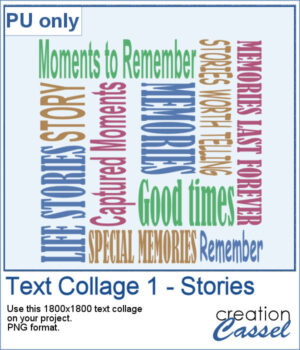
For a sampler, I created a collage with words and phrases related to memories and stories. Although I used some muted colors, you can always changed them by locking the transparency and painting some words. The collage is in PNG format so you can use whatever background color or patterns behind it.
You can now add some autumn-related details for your projects whether on corners, on edges, or randomly placed all around. This set includes 10 different corners, with 12 different edges, and 13 individual shapes.
For a sampler, I created some bookmarks that you can print or use on various projects. You can attach a string to them, write names or quotes or other messages on them. They are in png format so you can use them in a variety of programs.
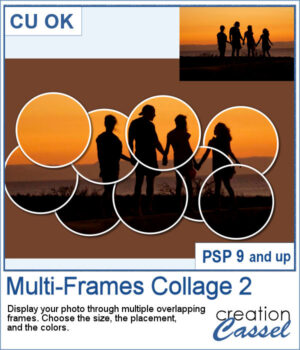
Turn a single photo into a fun collage with the Multi-Frames Collage 2 script. Your image will appear through a series of overlapping circular frames that you can position to highlight the important parts of your photo. Choose the size of the circles, customize the frame and background colors, keep or modify the original background, or remove it completely. Experiment with different arrangements to create a unique result every time.
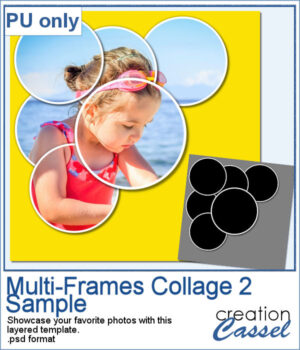
For a sample, I created a layered template that you can use to showcase your favorite photo. It is in .psd format so you can use it in PaintShop Pro, Affinity, or various other programs.
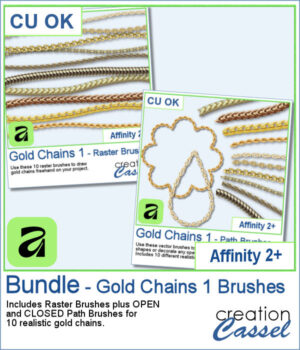
Add a touch of gold to your Affinity projects with these realistic Gold Chains brushes. The collection includes 10 different chain designs, from delicate links to heavier and more decorative styles.
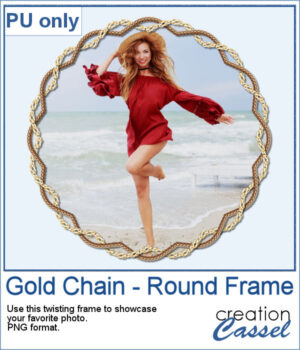
For a sample, I created a frame with two intertwined gold chains. The frame includes shadows to give that realistic 3D effect. The result is in PNG format so you can use it with any program.
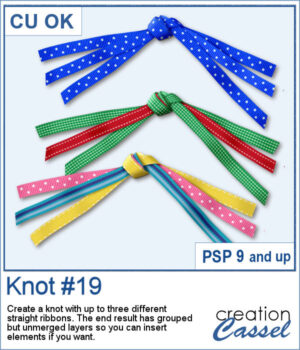
Create your own ribbon knot embellishments using the ribbons already in your stash! The Knot #19 script lets you combine one, two, or three straight ribbons into a dimensional knot with flowing ends on both sides.
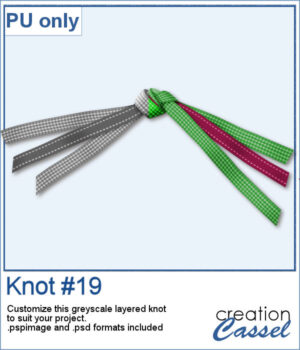
For a sampler, I created a knot using two different ribbons in greyscale. The end result is left on unmerged layers so you can colorize them to your liking and even insert elements, or other ribbons in the knot. The file is available in .pspimage format and .psd format so you can use it in more programs.
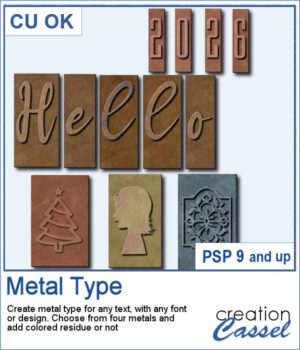
Give your text and designs the look of old metal printing type with the Metal Type Script. Use any font or custom design, choose from four different metal finishes, and add optional colored residue for a worn, well-used look. Create individual characters, coordinated sets, decorative designs, or even blank metal blocks, with plenty of variation from one piece to the next.
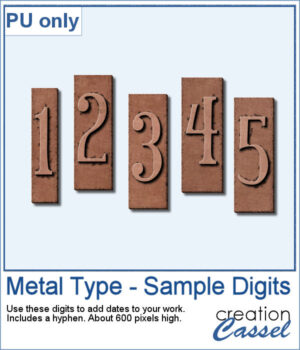
For a sample, I created a set of two digits, plus a hyphen so you can add dates, age, countdown, price, and more. I used a narrow font so it won't take too much space on your project.
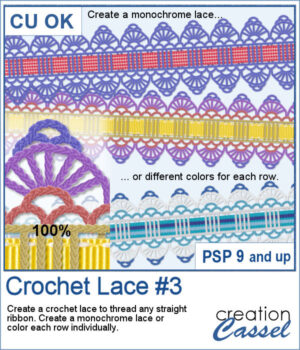
Give your favorite ribbons a handcrafted crochet finish with Crochet Lace #3! This PaintShop Pro script lets you transform any straight ribbon into an elegant lace embellishment in just a few clicks.
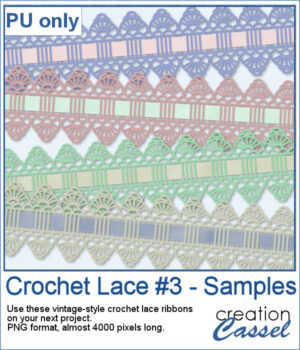
If you want a closer look, download this collection of four ready-to-use vintage crochet lace ribbons created with the script.