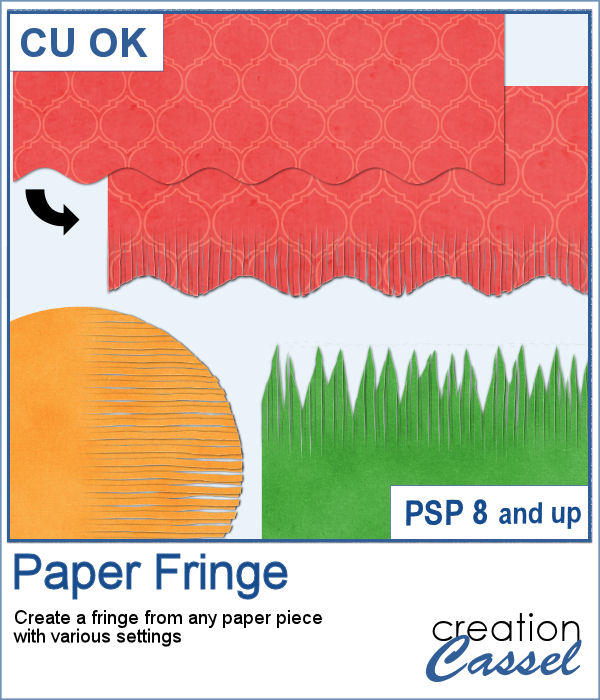
In order to create a paper fringe with PaintShop Pro, you will need to cut your element multiple times, and then, warp each piece one by one. But there is a problem: how do you warp one piece of paper without warping the next one? Well, there is a way to do it, but it is tedious, which is why this script will be a time saver.
With various options in the orientation, length, width, and regularity of the slits, there is also randomness integrated into the script to allow for a different result every time you run it, even if using the same settings and the same starting image.
Get it in the store: Paper Fringe
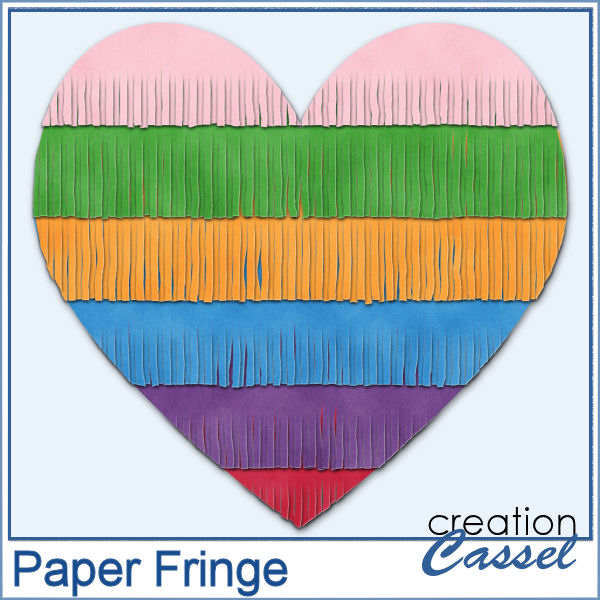
And see what you can do when you repeat the script using multiple strips of colored papers.
In order to win these tubes, add a comment on this Facebook post telling us if you have ever created paper fringes with paper and scissors (remember, add a comment, not just a Like!) The winner will be announced in the newsletter, next week. Not a subscriber yet? Not a problem. You can register here and it is free (and you only get one email per week).
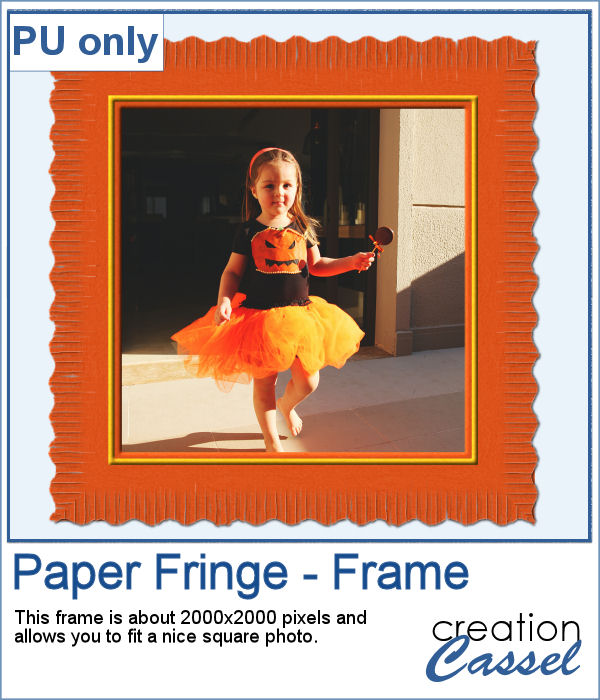
As a sample, I created this square frame from four strips of paper that were run through the script, one by one, and then put together to make the frame. I added a little contrasting border to add some interest. Now, you can showcase your favorite photo.
You need to be logged in to download this sample. You can either login, or register on the top of this page.
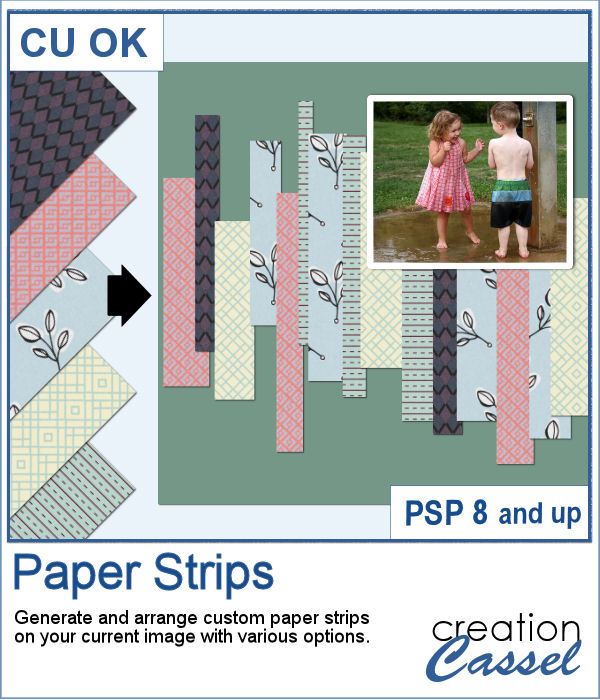
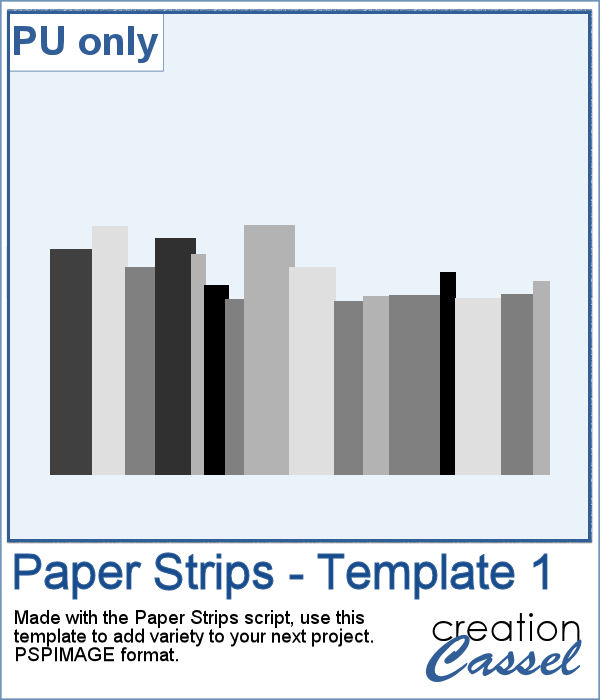
Sometimes, it can look interesting to have a series of paper strips of different colors or patterns to serve as a background for a project. However, that can be tedious and time-consuming.
As a sample, I chose to create a series of strips, aligned to the bottom, and turned them into a template so you can use it with your favorite papers. These strips are grouped so you can copy and paste them onto your project in one step (instead of copying them one by one!).
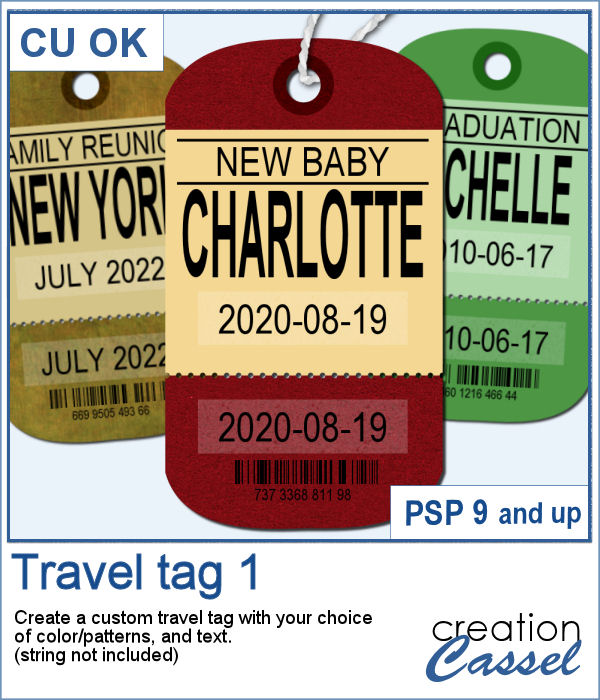
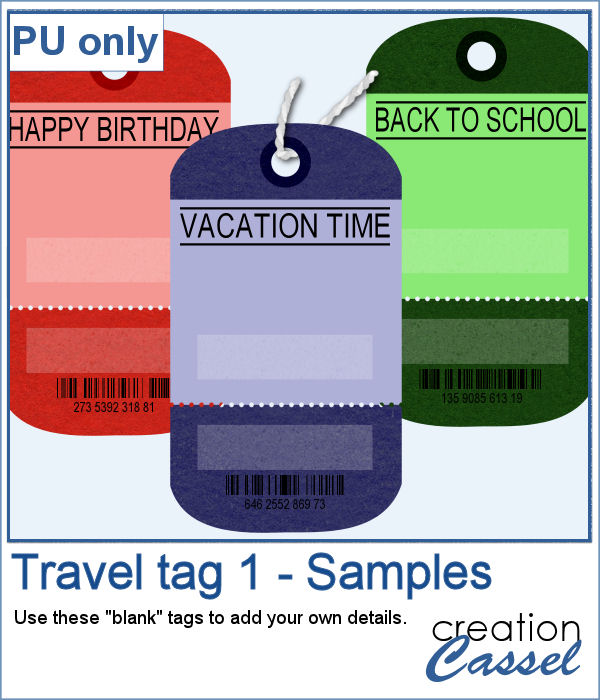
You can now create a custom tag, with the colors from your palette, or even with some interesting patterns, and include details of your choice. Although these tags would typically be associated with travel (like a location, an airport code, etc.), you can use them for any occasion since you can choose any text you want.
For this week, the samples I made were run through the script, but I stopped it before the final merge, which allowed me to remove some of the text. This helps create "blanks" that you can fill however you need.
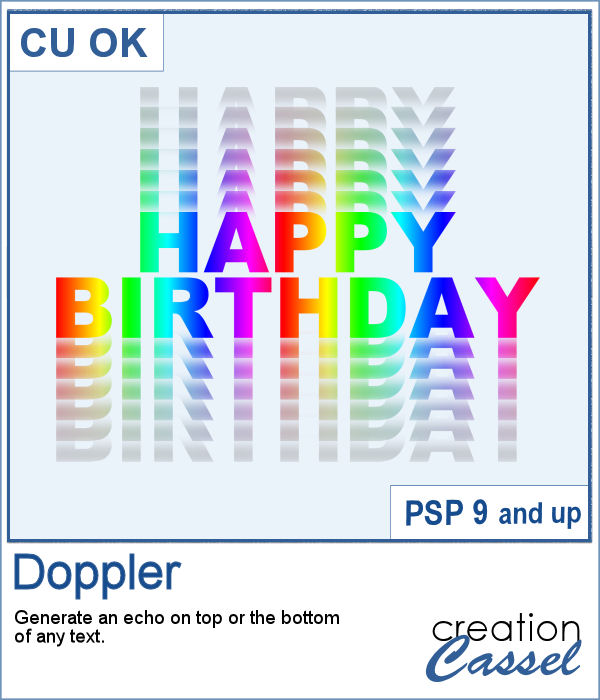
The Doppler effect is that difference in sound you hear when a vehicle runs in your direction, and then away from you. It is a sort of echo of the soundwave.
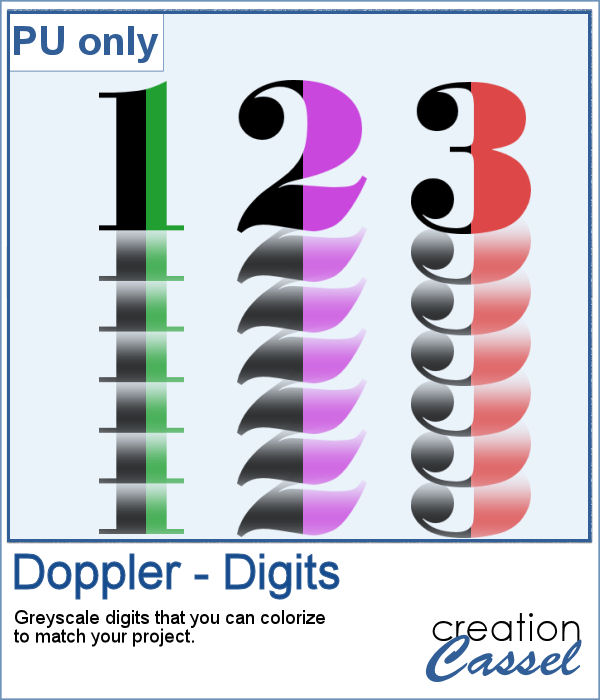
As a sample, I ran the script on individual digits starting with a black text. This will allow you to colorize the elements to match your project. To maintain the transparency on these digits while adding color, lock the transparency of the layer, fill with the material you want, and unlock the transparency.
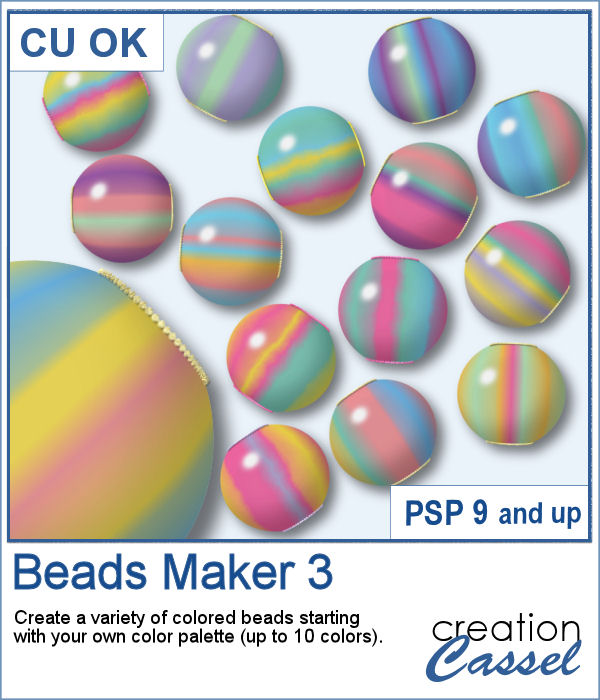
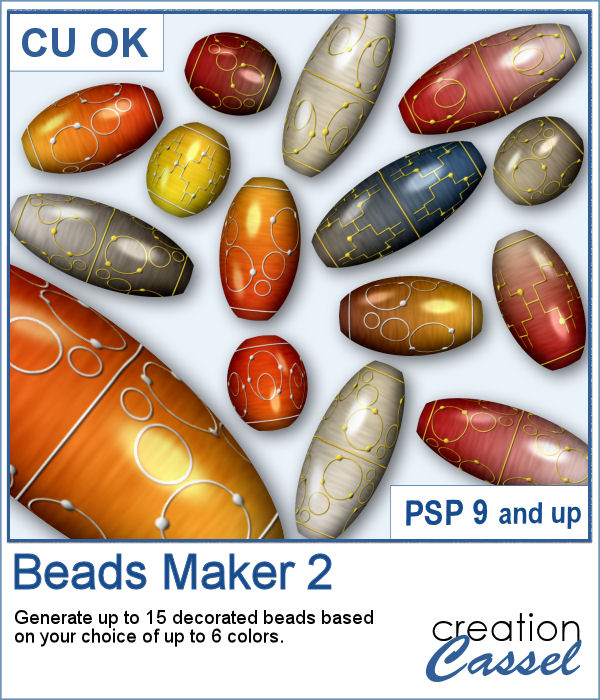
You can now create as many beads as you want to perfectly match your project, and in a short time.
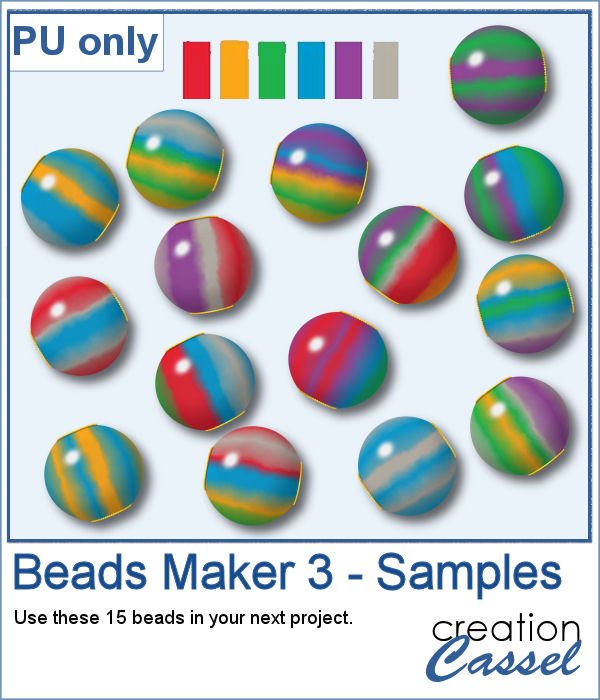
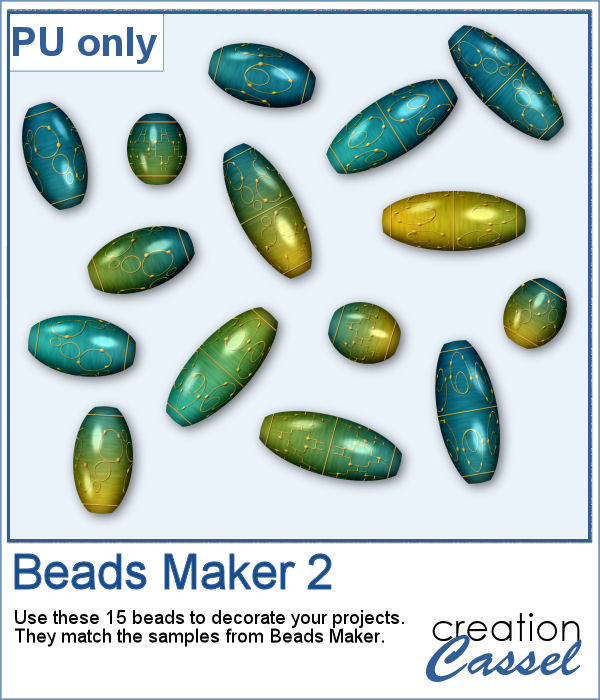
For a sampler, I used the color palette from the June Blog train at DigitalScrapbook.com and created 15 beads. Each bead is 200 pixels in diameter. You can collect other supplies in the Blog Train in
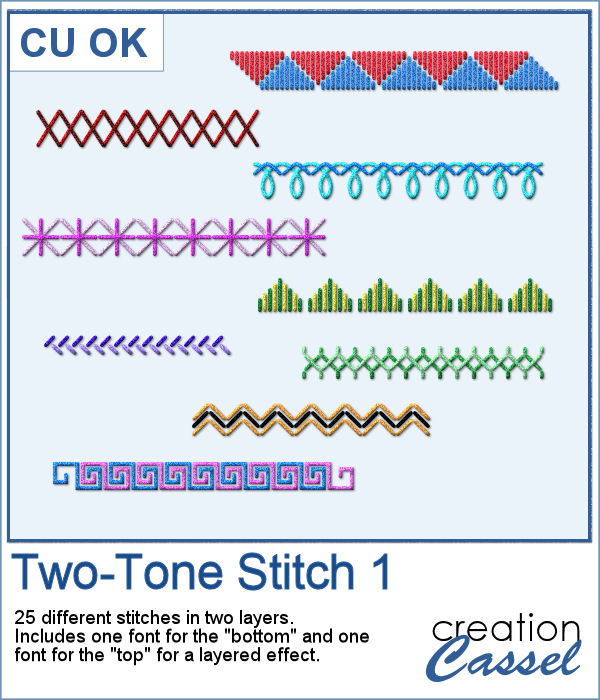
Finally, a new font in the store. This time, it will allow you to use two colors of threads if you want, or simply showcase the layered effect of the stitches with the bevel and shadow.
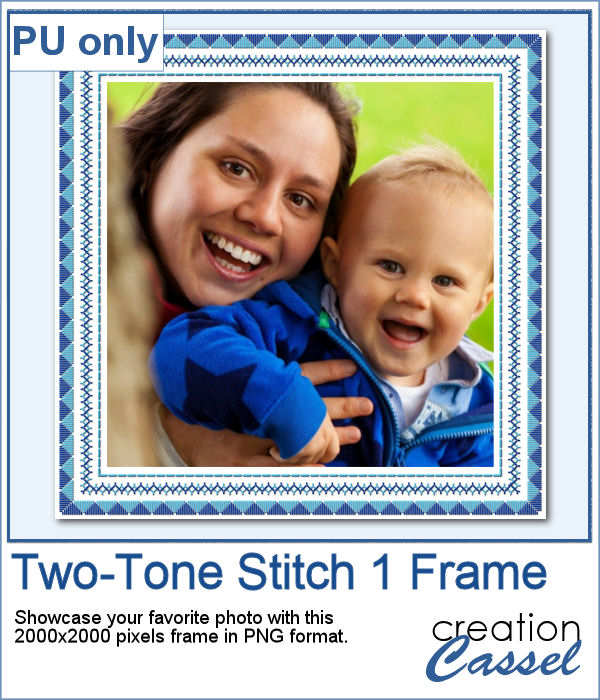
For a sampler, I created this square frame using a couple of those stitches in light and dark blue. The frame is about 2000x2000 pixels and in PNG format.
Creating delicate beads in the color scheme that you want can be challenging.
I used the same color palette as for the sample of
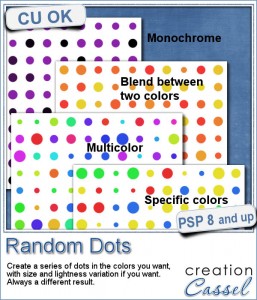
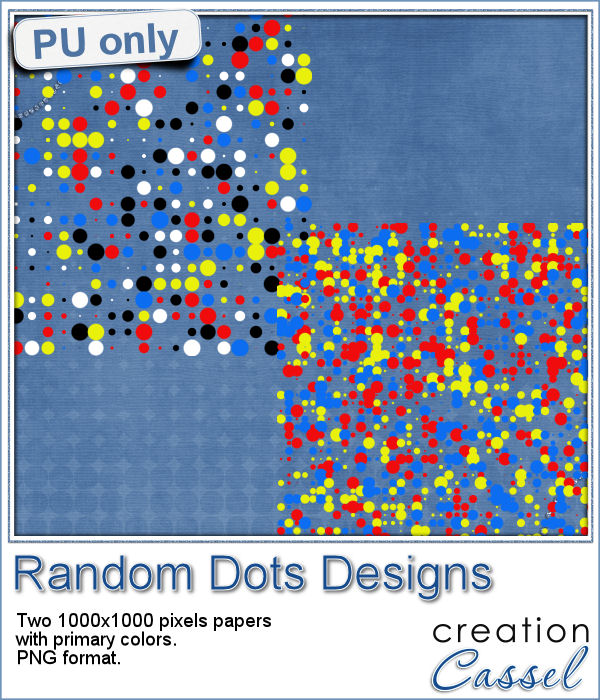
There are super simple ways to create regular dots in an even pattern. If you want a speed up tool to create a variety of polkadot tiles, you can use the Dots and Diamonds script. But if you want to create something that has more variety in the dots yet, still be regular, what do you do?


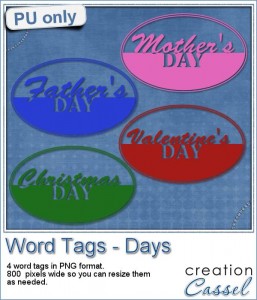
As a sample, i created four tags based on common DAYS, that you can use for your projects. You probably have at least one layout for Mother's Day, Father's Day, Valentine's Day or Christmas Day, right?