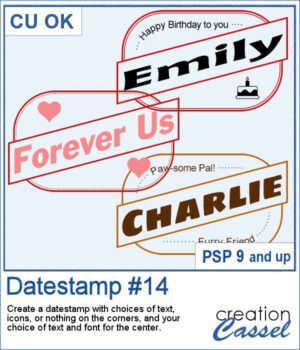
 Looking for a bold and stylish way to frame your words or photos? The Datestamp #14 script gives you a fun design that’s perfect for highlighting a name, a message, or even a full photo!
This script creates a classic rectangular frame with a slanted banner across the middle, letting you showcase your main text front and center. You get to pick the font, color, and wording for that banner — so it’s fully customized to your project.
Want to dress up the corners too? You’ll have plenty of options! Choose to add icons (like hearts, planes, or graduation caps), short messages, or even fill the corners with a color or pattern. You can leave them empty as well, or use your own brushes or photos to personalize it even further.
This design works beautifully for cards, titles, tags, or photo labels. Use it to create custom greetings, mark a special trip or event, or label a pet or loved one in a layout. It’s super flexible — and super fun!
Get this script in the store: Datestamp #14
Want a chance to get this script for free? Head over to this Facebook post and let us know: What would you write in the diagonal banner? A name? A destination? A fun phrase? (Remember — only comments count. Likes and shares are always appreciated, but won’t count as entries.) A winner will be picked and announced in next week’s newsletter. If you’re not subscribed yet, you can join right here. It’s free and we only email once a week!
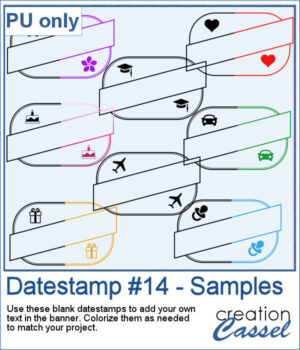 To give you a sample of what this script can create, here’s a set of 8 datestamps — one for each shape available in the script. The banners are left blank so you can add your own text, and the corner icons range from birthdays and love to travel and graduation. Each one is in black so you can easily colorize them to match your project.
You need to be logged in to download this sample. Please log in or register using the links at the top of this page.
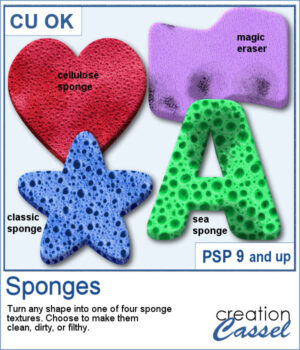 If you have any project around a "cleaning" theme, you might want to add various sponges in different shapes and colors.