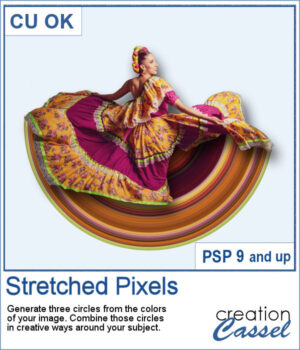
A great way to showcase a particular subject can be to add a colorful circle based on the image colors. The advantage of this script is that you won't be limited to a straight rectangular section to select the colors. In fact, you will be able to draw over the image where are the most colorful section you want to use.
Once the script has completed, you will have three circles generated from the exact section you have selected. You can use either one or more than one circle and place it/them behind your subject. It will obviously give a better result if your subject is isolated, but you can also use the circles creatively.
Get this script: Stretched Pixels
In order to win this script, add a comment on this Facebook post telling us if you have ever tried to create a circular stretched pixel effect (remember, add a comment, not just a Like!) The winner will be announced in the newsletter, next week. Not a subscriber yet? Not a problem. You can register here and it is free (and you only get one email per week).
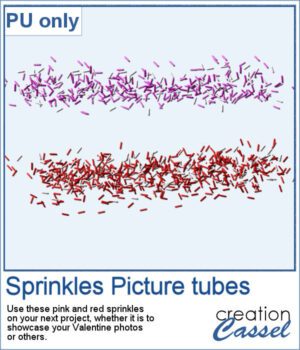
For a sample, since this script relies heavily on your own photo, I decided to create a set of sprinkles picture tubes for your Valentine photos, or any other project you want to create. One set is using shades of pink, the other uses shades of red.
You need to be logged in to download this sample. You can either login, or register on the top of this page.
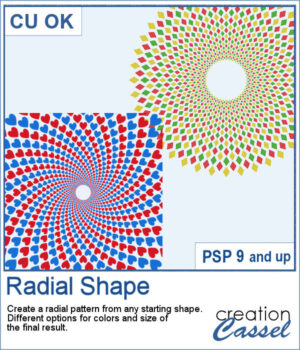
Creating a radial design might be fairly easy using the kaleidoscope command, but that does not give you all the flexibility of ajusting the colors, using asymmetrical shapes, or getting perfectly sized rings. This can only be done with careful and tedious calculations.
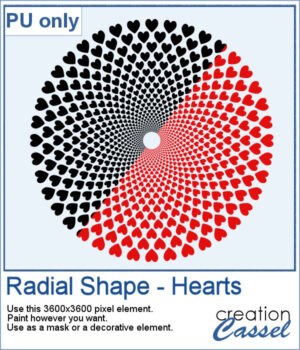
For a sample, I created a basic design with hearts (perfect for Valentine Day). It is black but with the Locked Transparency, you can change its color and you can use gradients too. If you want to use it as a mask, you can do that too.
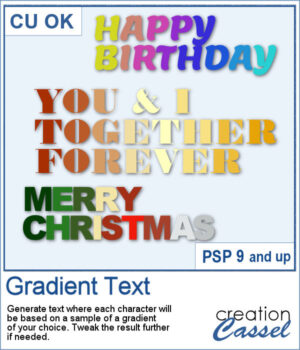
Selecting individual colors per character is tedious at best and inconvenient in other situations, but with this script, you can choose a gradient and it will sample colors evenly on that gradient based on the length of the longest string of text.
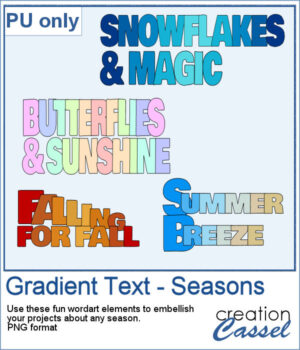
Get a taste of the the script with this free set of four seasonal word art designs! Each piece is created using a unique gradient to match the vibe of spring, summer, fall, and winter. These high-quality PNG files with transparent backgrounds are perfect for your digital or print projects!
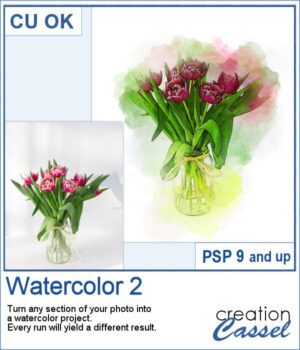
If you like the watercolor look, you could convert most photos into a piece of art.
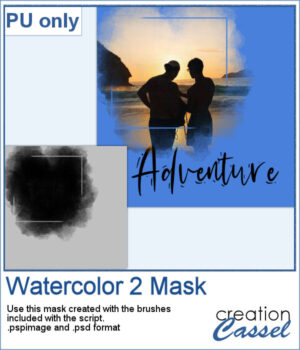
For a sampler, I used the brushes included in the zip file to create a mask that you can use to showcase a photo of your choice. The file is available in .pspimage and .psd formats.
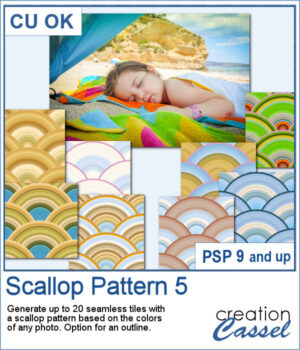
Although you can create scallop patterns with a set number of colors or gradients, you can get a lot more different patterns when they are based on a photo. In fact, this script works similarly to the
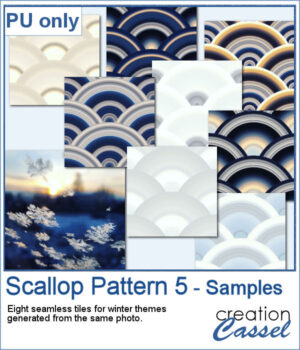
For a few samplers, I used a winter photo from Unsplash and generated many tiles. I kept the best eight tiles. Once you have filled your page with the seamless tiles, you can apply various effects to make the design sharper or more subtle.
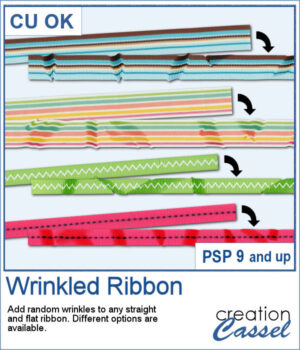
And you can now have some flat ribbons that are not so flat anymore.
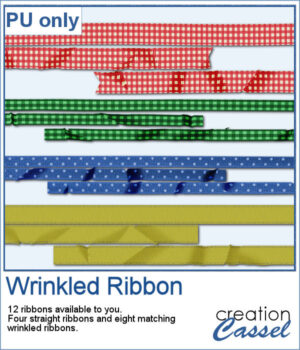
For a sampler, I created some flat ribbons from CU files, and ran the script twice on each so you have three matching ribbon for each of the four starting ribbons.
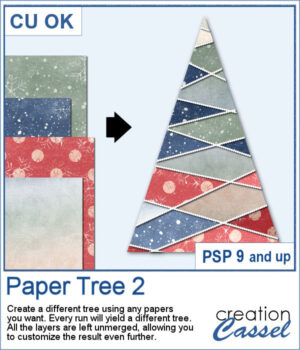
Stylized trees are a perfect addition to your scrapbook pages, cards, and posters, and now you can create them effortlessly with this script! Every run generates a unique tree design, using the papers you’ve opened in your workspace. No two trees will ever be the same!
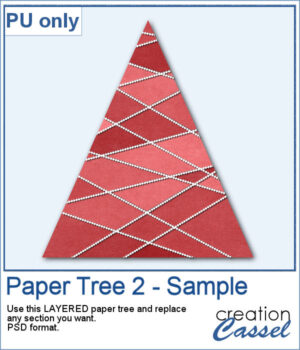
For a sample, I created one tree using a single paper (notice that there are some variations if lightness in different sections). All the sections are left unmerged so you can tweak them, replace them with other papers, or even with photos.
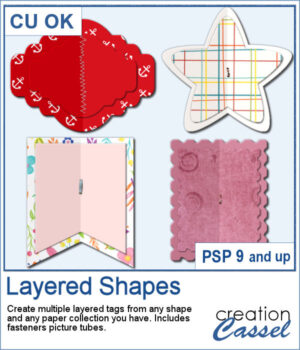
You can create fun layered shapes for tags, decorations, clusters, etc. You choose the shape and the papers to use. You then let the script combine everything to create up to 15 different layered shapes.
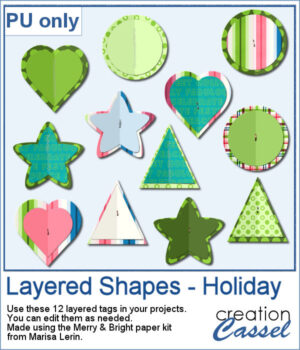
For samplers, I created 12 layered tags using the paper kit Merry & Bright from Marisa Lerin. Each shape is left in individual layers so you can tweak them as needed.
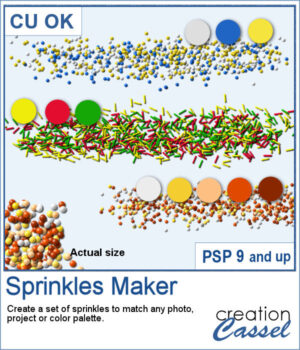
When you shop in a store, you can often find sprinkles in different colors. It is the same in the Creation Cassel store, where you can purchase sprinkles in single colors. However, sometimes, you want to have multiple colors combined for a particular theme, or color palette.
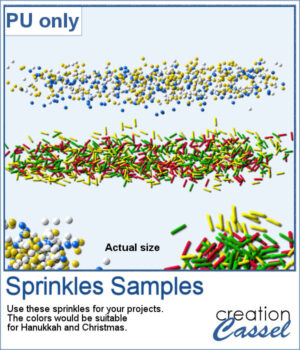
For a sample, I created two sets if picture tubes for the holidays. One with Christmas colors and one with Hanukkah colors. Of course, you can use those sprinkles with other projects, even if not related to the holidays at all.
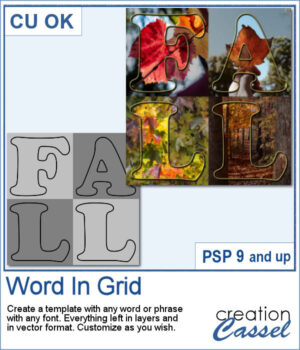
It is quite tedious to create a grid of letters to spell out a word, but this script will create it for you, in just a few seconds. And once your template is done, it is up to you to customize it, and replace the various elements with your favorite colors, papers, photos, etc.
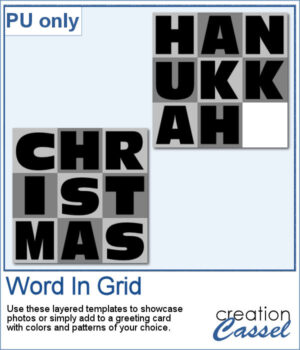
For a sample, I considered the two main holidays coming in December so you can use these templates to either showcase photos, or add to a greeting card (you would have to resize it then). Each template is 3000x3000 pixels in .pspimage format.