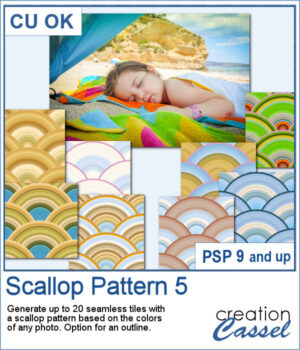
Although you can create scallop patterns with a set number of colors or gradients, you can get a lot more different patterns when they are based on a photo. In fact, this script works similarly to the Plaid Maker script: it will pick a random segment of the photo and turn it into a seamless scallop pattern.
You can generate up to 20 tiles in one run and every tile will be different.
Get this script in the store: Scallop Pattern 5
In order to win this script, add a comment on this Facebook post telling us if you use scallop patterns in projects (remember, add a comment, not just a Like!) The winner will be announced in the newsletter, next week. Not a subscriber yet? Not a problem. You can register here and it is free (and you only get one email per week).
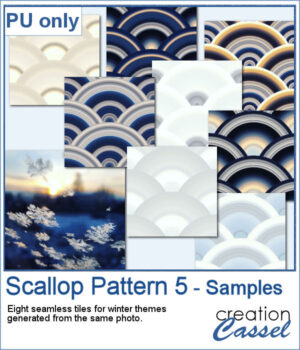
For a few samplers, I used a winter photo from Unsplash and generated many tiles. I kept the best eight tiles. Once you have filled your page with the seamless tiles, you can apply various effects to make the design sharper or more subtle.
You need to be logged in to download this sample. You can either login, or register on the top of this page.
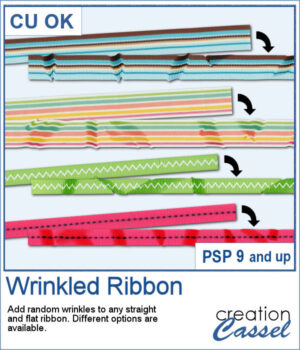
And you can now have some flat ribbons that are not so flat anymore.
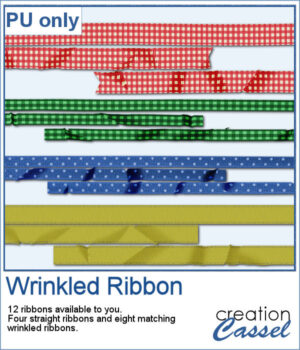
For a sampler, I created some flat ribbons from CU files, and ran the script twice on each so you have three matching ribbon for each of the four starting ribbons.
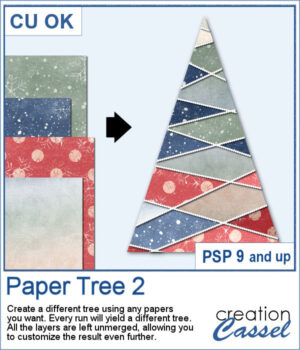
Stylized trees are a perfect addition to your scrapbook pages, cards, and posters, and now you can create them effortlessly with this script! Every run generates a unique tree design, using the papers you’ve opened in your workspace. No two trees will ever be the same!
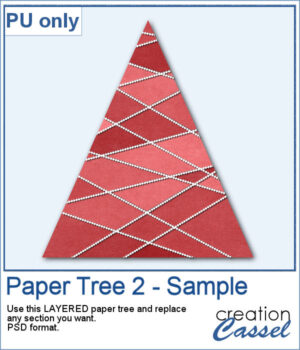
For a sample, I created one tree using a single paper (notice that there are some variations if lightness in different sections). All the sections are left unmerged so you can tweak them, replace them with other papers, or even with photos.
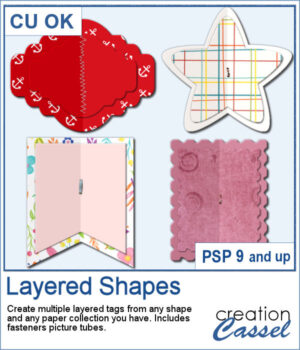
You can create fun layered shapes for tags, decorations, clusters, etc. You choose the shape and the papers to use. You then let the script combine everything to create up to 15 different layered shapes.
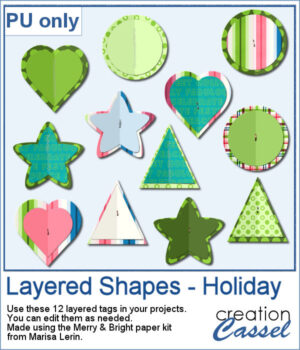
For samplers, I created 12 layered tags using the paper kit Merry & Bright from Marisa Lerin. Each shape is left in individual layers so you can tweak them as needed.
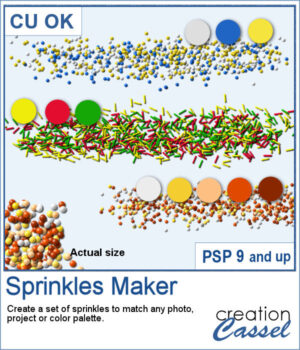
When you shop in a store, you can often find sprinkles in different colors. It is the same in the Creation Cassel store, where you can purchase sprinkles in single colors. However, sometimes, you want to have multiple colors combined for a particular theme, or color palette.
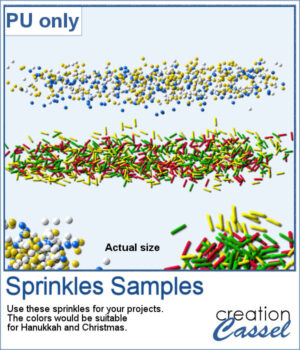
For a sample, I created two sets if picture tubes for the holidays. One with Christmas colors and one with Hanukkah colors. Of course, you can use those sprinkles with other projects, even if not related to the holidays at all.
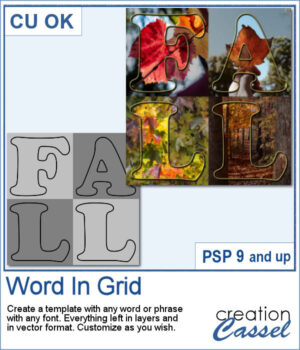
It is quite tedious to create a grid of letters to spell out a word, but this script will create it for you, in just a few seconds. And once your template is done, it is up to you to customize it, and replace the various elements with your favorite colors, papers, photos, etc.
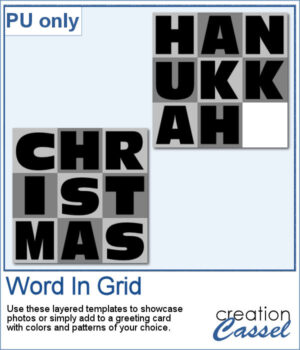
For a sample, I considered the two main holidays coming in December so you can use these templates to either showcase photos, or add to a greeting card (you would have to resize it then). Each template is 3000x3000 pixels in .pspimage format.
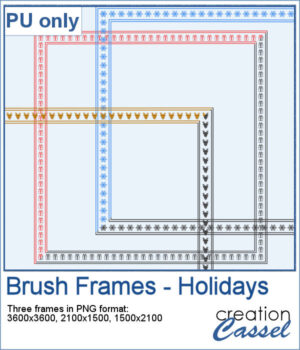
Although you can place brush imprints easily along the edge of an image, it is not always easy to make it EVEN on all sides.
For a sample, I created three holiday-related frames of different formats: square 3600x3600 pixels, and rectangular 2100x1500 and 1500x2100 pixels with different holiday brush tips.
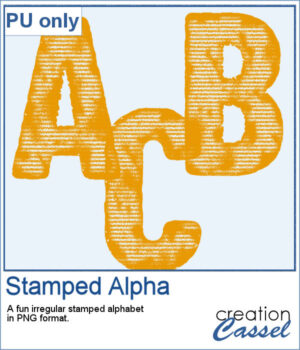
You can get the look of stamped letters, digits, and shapes in just a few clicks. You can create a single element or a whole series for a themed project.
For a sample, I created a full alphabet in orange color, perfect for Halloween. Each letter is about 500 pixels in height and in PNG format so it will show the background color of any paper or project.
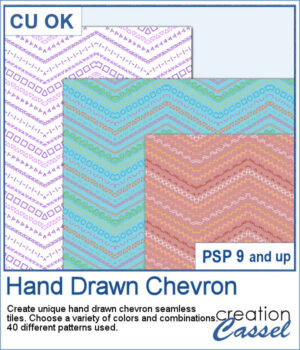
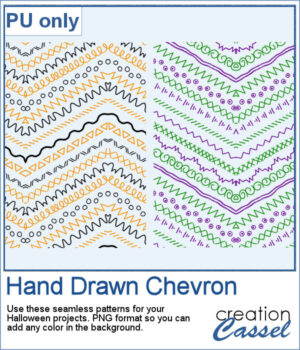
It might not be hard to draw chevrons by hand, but it is tedious... very tedious.
For a sample, I created two seamless tiles with Halloween colors. Each tile is in PNG format so you can add whatever background color you want on it.
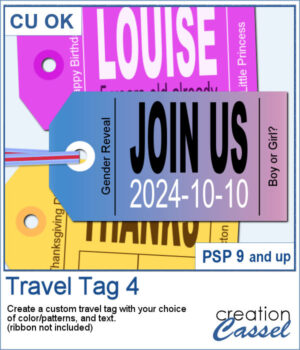
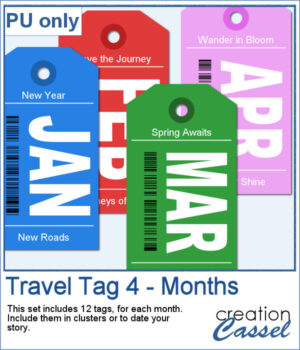
You don't have to limit yourself to boring, simplistic, or ready-made tags when you want something customizable.
For samples, I created 12 tags for the months of the year. Each one has a different color that matches the month. I used solid colors so you CAN brush over any section with the brush tool if you want to erase some text and replace it with something else. Each tag is in png and if you are doing traditional scrapbooking, you could even print and cut them.