Ever wished you could make your own notepad-style element using any paper or shape you like? This new Paper Pad script for PaintShop Pro lets you do just that! Turn any flat paper into a multi-layered pad, complete with realistic torn edges at the top.
Choose how many pages you want to appear ripped (from 1 to 3), and let the script stack them automatically. You can even use custom shapes like hearts, stars, or letters—not just rectangles!
All the pages are placed on separate layers so you can easily: remove a few pages for variety, colorize each page individually, or add your own shadows and finishing touches
Get this script: Paper Pad
Want a chance to get the Paper Pad script for free? Head over to this Facebook post and tell us: What kind of “paper” would you use first—lined paper, decorative paper, or something totally custom? (Remember: only comments count — likes don’t!) Winner announced in next week’s newsletter. Not subscribed yet? Join here — it’s free, and we only email once a week.

This week’s freebie is a fun digit-shaped notepad, made with bold colors and torn paper edges—perfect for adding a date to your project. It comes as a full-size PNG and is ready to use on your next layout.
You need to be logged in to download this sample. Please log in or register using the links at the top of this page.
You can add an envelope with various papers you have. You can add some stains, distressing, or scribbles on those envelope and use them in clusters, or as elements for your project.
For a sample, I created an open envelope and added a little card. The envelope is in layered PSD format, so you can open it in most programs. You can add designs or messages on the card, but you can also add some details to the envelope itself if you want.
If you have any project around a "cleaning" theme, you might want to add various sponges in different shapes and colors.
For a sampler, I created 10 sponges with the individual digits, and the cellulose texture. Every sponge is meant to be filthy. That would be perfect for any spring cleaning theme project.
Looking to add a modern, tech-inspired twist to your text or shapes in PaintShop Pro? The new Glitches script offers a fun and creative way to simulate digital distortion effects. Whether you're going for a retro screen error or an edgy design element, this script gives you multiple options to customize the look.
For a sample, I created a 404 message using all of those types of glitches. They are in png format so you can use them in any project, and you can resize them as they are fairly large to start with.
The first Gimp trims were released 13 years ago! But these are slightly different.
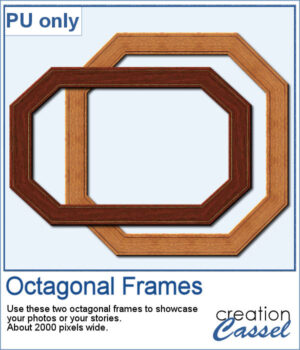
For samplers, I created two frames for you. Each one is made from running the VectorTube script twice on a simple shape. One trim is full size while the inside trim is half-size for an interesting effect.
You can turn any vector shape into a fun and colorful flower-filled element with this script. Whether it’s a number, a letter, or a custom shape, you’ll get a unique result with one of five different floral textures.
For a sampler, I created a full alphabet using a nice script font and the pink flowers. Each letter is about 900 pixels high so you would have the opportunity to resize them to fit your project.
If you want some variety in tags but you want them to match the kit you are creating or using, this script will give you plenty of them. You can create up to 25 tags to choose from. Each tag will be created based on any papers you open.
For a sample, I generated 12 different tags using papers from the mini-kit Countryside from Jessica Dunn. Each tag is 500x700 pixels in PNG format so you can use them with any program. Each tag also has a hole that you can use to thread a string, a chain, or a ribbon.
By popular demand, another set of punches has been created, this time with an Easter theme! This collection includes 12 designs, featuring corner punches, edge punches, and individual elements like eggs, chicks, and flowers.
For samples, I created three bookmarks for you. I used those punches as brush imprints instead of cutout. Add a word or a quote in the center to suit your project.
Although you can create uneven lines manually, it can be tedious to repeat the process for many lines on a page.
For a sample, I created two full-size pages of uneven lines. One will be using pastel colors, perfect for spring or Easter, and one has bold colors, perfect for a crafty of kid theme. They are in PNG format, so you can duplicate them and create different variations.
For a sample, since this script relies heavily on your own photo, I decided to create a set of sprinkles picture tubes for your Valentine photos, or any other project you want to create. One set is using shades of pink, the other uses shades of red.