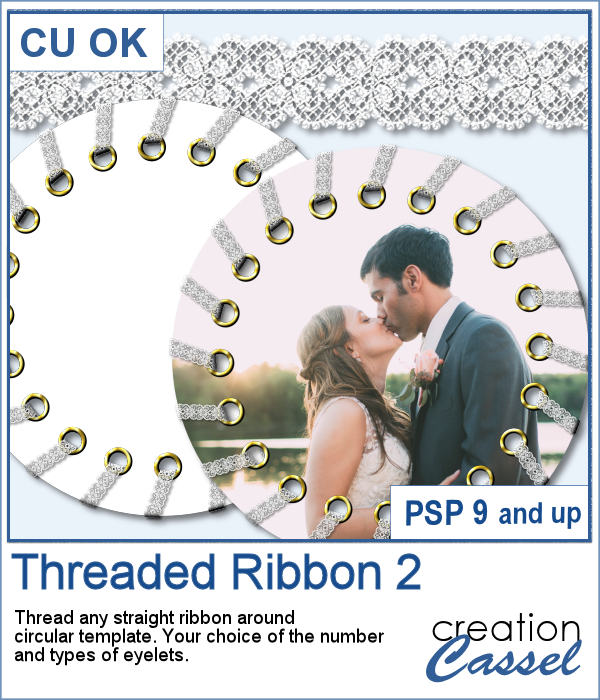
 Threading your favorite ribbon manually around a frame is very tedious and hard to do precisely, but this script will allow you to do it using any straight ribbon you already have.
With various options, you can create frames with a new look every time. Choose the number of eyelets, choose the color of the eyelets. You can even cut out the center of the frame if you want a unique element. The end result is quite large so you can always resize it as needed.
Get this script in the store: Threaded Ribbon 2
In order to win this script, add a comment on this Facebook post telling us what you would thread with it (remember, add a comment, not just a Like!) The winner will be announced in the newsletter, next week. Not a subscriber yet? Not a problem. You can register here and it is free (and you only get one email per week).
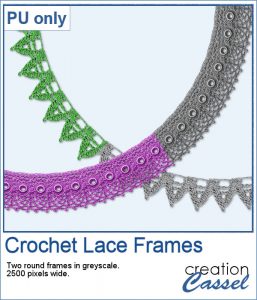
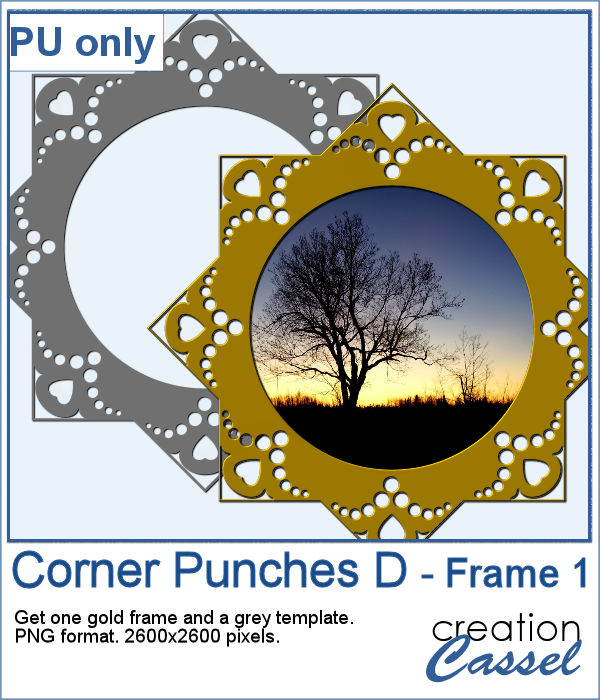
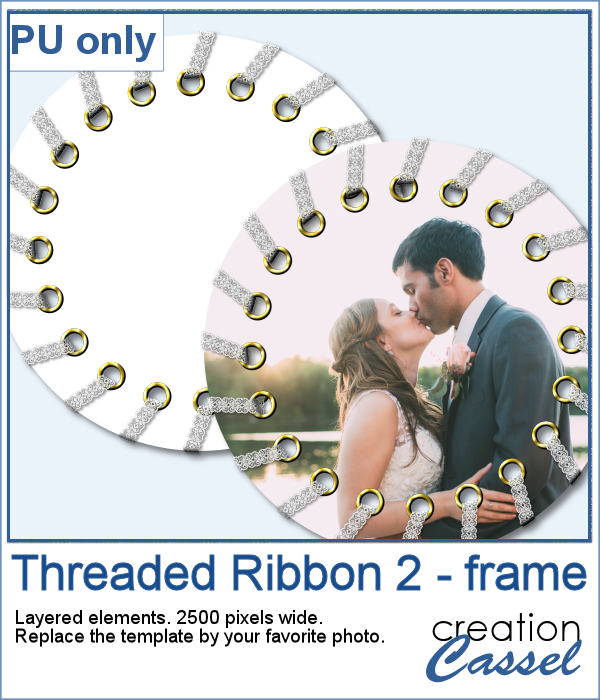 For a sampler, I simply am offering one layered template made with the lace ribbon in the preview. Everything is left on unmerged layers so you can use the template and modify it as you want. You can punch a whole in the center, or clip some fancy papers on it, or replace it by your favorite photo, like in the preview.
The element is in .pspimage format (so can only be used with PSP).
You need to be logged in to download this sample. You can either login, or register on the top of this page.