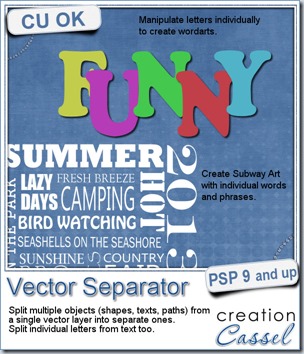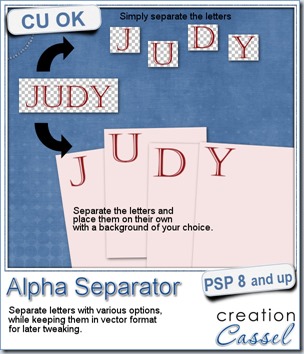
A couple of weeks ago, Lynn emailed me asking for a script to help her quickly create “cards” with letters as she needed individual letters to write words and phrases on cakes (yes, she does that, and it is pretty!). Nothing was available to meet her needs, even in the store, so i proceeded to code this script.
This is clearly a tool script that will split all the letters in a word (or a phrase), into separate images. It will create all the images the same size (matching the biggest letter of the text) and giving you options to add a background if you want, choose a different size, move the letters off the center (where they would be placed by default), or resize the letters too. One particularity of this script is that it will keep the characters in a vector format, allowing you to start with a small font, and choose a large size image to put them and the letters will be sized up without any distortion. And they are left on unmerged layers so you can tweak them further if you wish.
If you want to make an alpha to match a particular kit, use one paper from the kit to write the text in the first place and it will be separated with that paper. A fast way to create a simple alpha.
You can get this time saving script in the store: Creation Cassel.
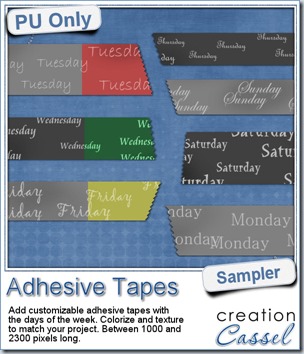
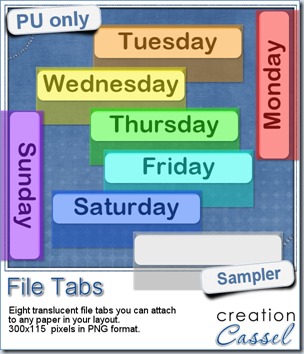 Since you probably don’t need another alpha from me, and since this is a tool script, it is a bit harder to make a sample from it. So i thought of an older script of mine that might help you if you are doing a Project 365, or if you just like to add a fun way to date your layouts. These are file tabs, like you would see in a binder to divide sections. Each tab has a day of the week on it and it also includes a blank white tab, in case you want to add something else to your layout, than a day (maybe a date? maybe a week number?)
Each tab is translucent so you can place it on the edge of a paper, or a frame or a photo and the design will show through.
What would you use the blank tab for?
You need to be logged in to download this sample. You can either login, or register on the top of this page.